

Browser Compatibility: The Portal Editor does not currently work in Firefox. Please use Chrome, Edge, Safari, or another Chromium-based browser.
What you can do
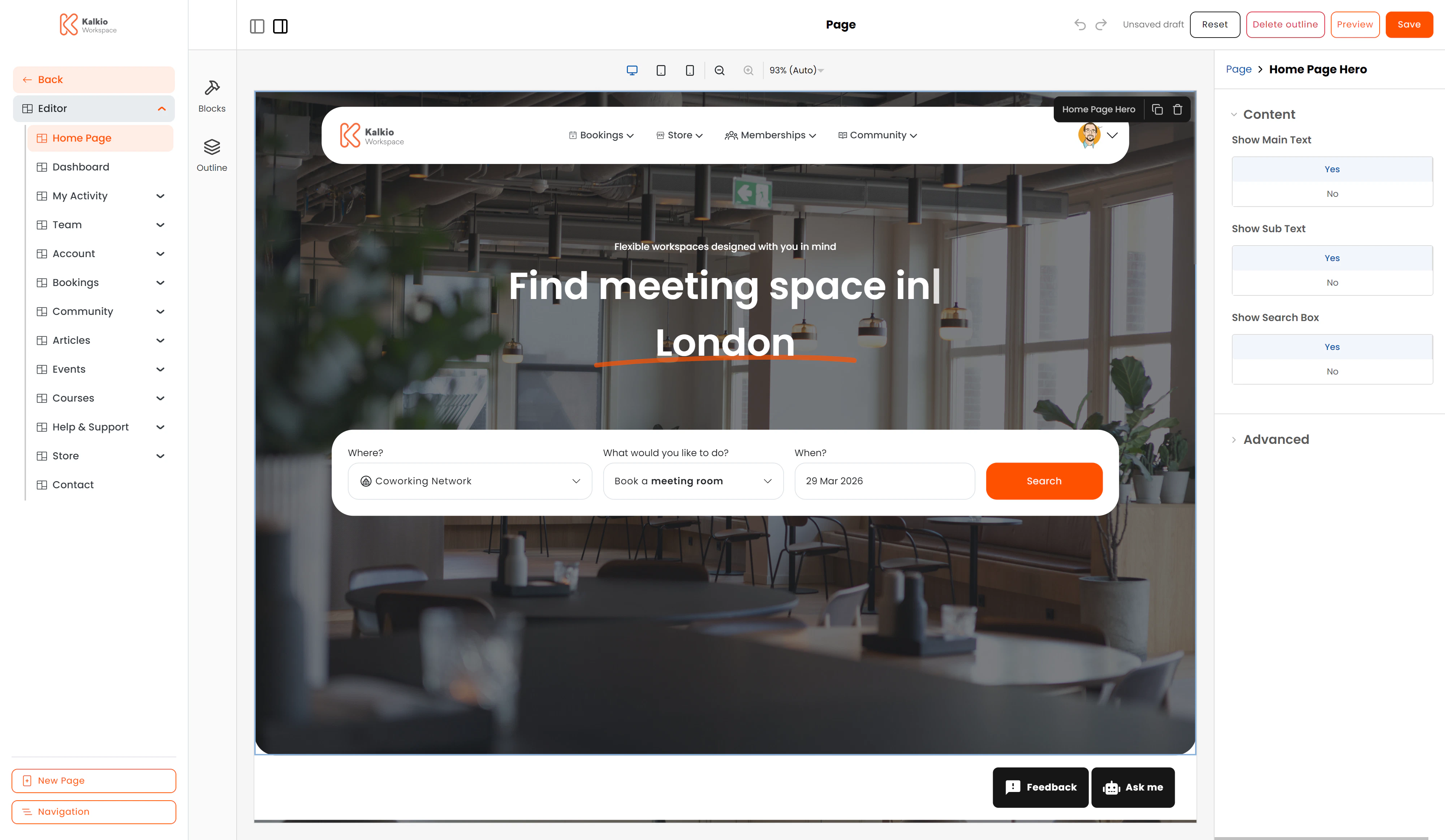
Editor anatomy
The editor interface is divided into four main areas:- Left sidebar — browse and open built-in pages, custom pages, create new pages from templates, and open the Navigation editor.
- Component drawer & Outline — built-in Puck panels for inserting new components (drag from the drawer) and inspecting the component tree (Outline).
- Canvas — the live preview area where you drag, drop and rearrange components. Supports Desktop, Tablet and Mobile viewports.
- Properties bar — when you select a component on the canvas, its configurable properties appear on the right-hand side, organised in collapsible groups.
- Toolbar — the top bar with Save, Reset, Delete, Preview buttons and an unsaved-draft indicator.
How to access the editor
Navigate to your portal URL and append/admin/editor — for example https://yourspace.nexudus.site/admin/editor. You must be signed in as a space operator.
Next steps
Left Menu & Pages
Browse built-in pages, custom pages, templates and the navigation editor.
Navigation Editor
Order, show or hide built-in sections and custom groups to organise your portal menu.
Components & Properties
Learn about every available component and its configurable properties.
Toolbar & Workflow
Draft management, saving, resetting, deleting, and previewing pages.
Layout Components
Containers, grids, stacks, divs and responsive layout primitives.
Advanced: Iframes, Scripts & CustomerType
Embed external content, load third-party scripts, and target content by audience.