

Connect from Claude.ai
Claude.ai connects to MCP servers through its Connectors feature. The Nexudus MCP server appears as a custom connector you add once and reuse across chats.Prerequisites
- A Claude.ai account on a plan that supports custom connectors (Pro, Team, or Enterprise at the time of writing).
- A Nexudus account with API access.
- A web browser.
The Connectors feature is available on Claude.ai’s paid plans. Free accounts cannot add custom MCP connectors. Check your plan on the Claude.ai
billing page if you are unsure.
Add the Nexudus connector
1
Open Claude.ai settings
Sign in to claude.ai, open the menu, and choose Settings.
2
Go to Connectors
In the settings sidebar, open Connectors (sometimes labelled Integrations).
3
Add a custom connector
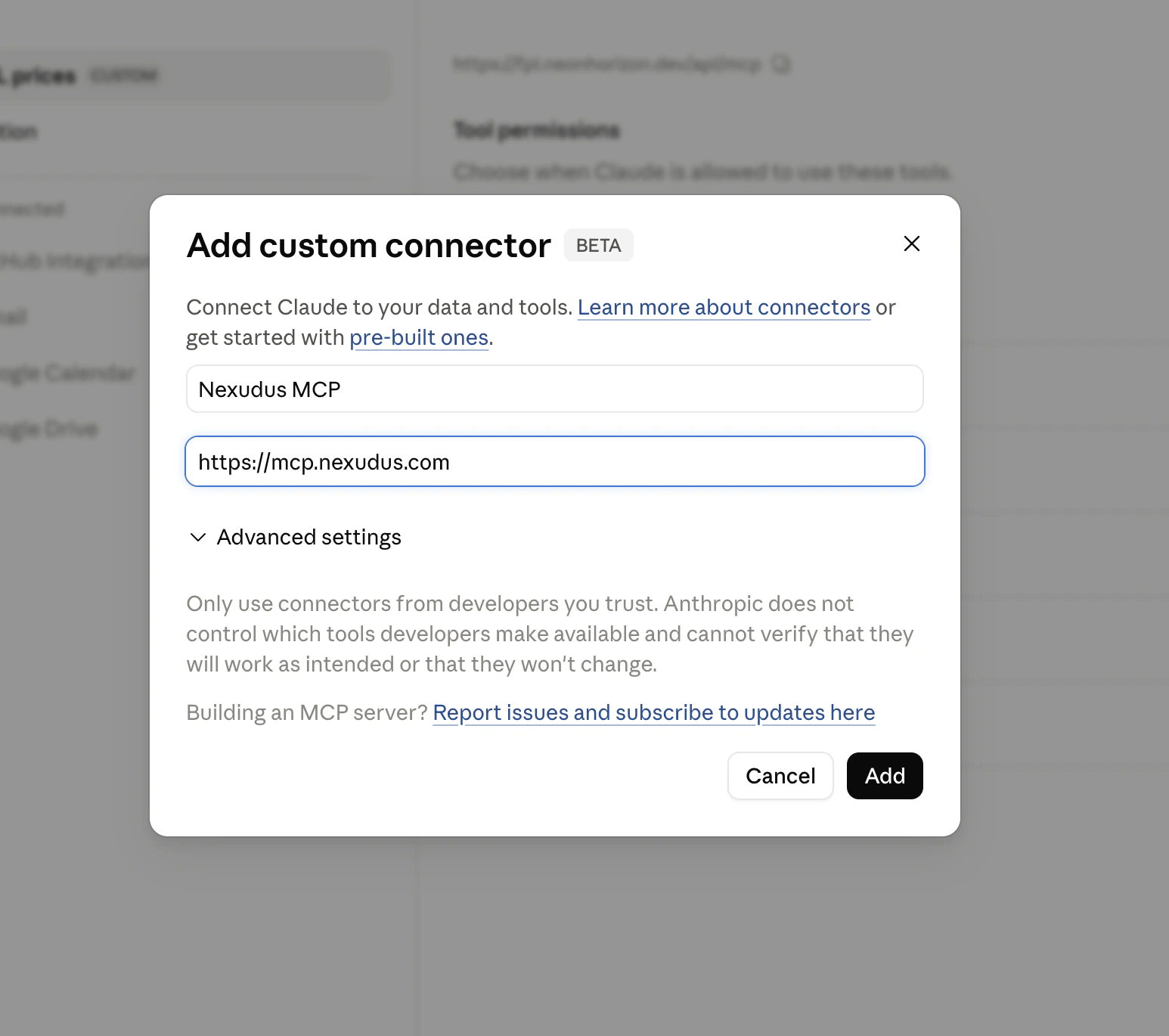
Click Add custom connector. A dialog appears asking for a name and a remote MCP server URL.
4
Enter the Nexudus details
- Name:
Nexudus - Remote MCP server URL:
https://mcp.nexudus.com
5
Sign in to Nexudus
Claude.ai opens a browser window to the Nexudus login page. Enter your Nexudus email and password and approve the connection. You are
redirected back to Claude.ai, and the connector is marked Connected.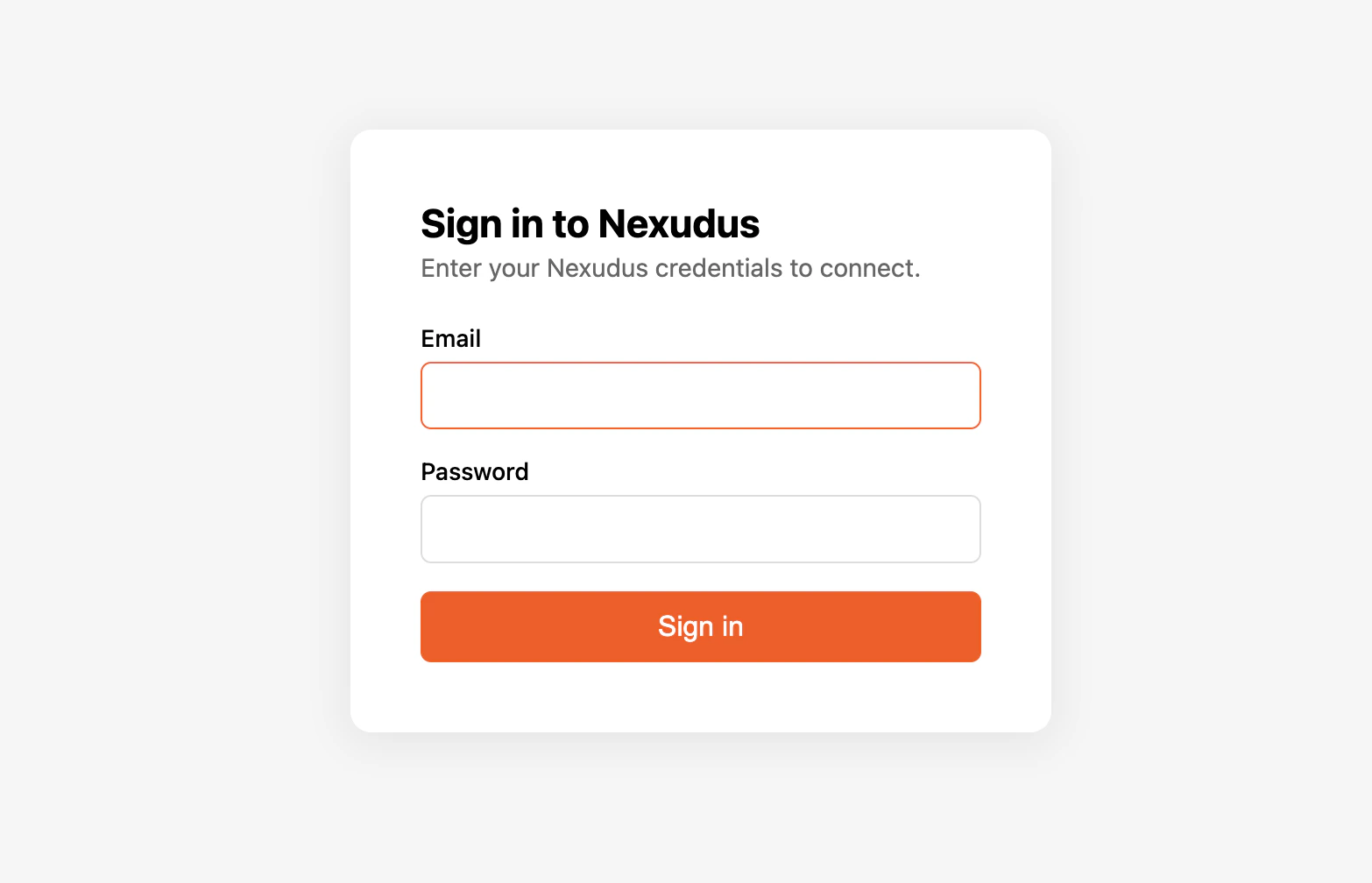
Verify it works
Start a new chat and ask:“List my Nexudus locations.”Claude should call the Nexudus connector and return your locations. If it does not, see Troubleshooting.
Using the connector in chats
Once connected, the Nexudus tools are available in any chat. You don’t need to enable the connector each time. Some prompts to try:- “Show me all upcoming bookings for my main location this week.”
- “How many visitors are expected today?”
- “List all members whose contracts expire next month.”
- “Create a new product called ‘Day Pass’ priced at £25 at my main location.”
Disconnect or re-authenticate
To disconnect, return to Settings → Connectors and click Disconnect next to the Nexudus connector. To re-authenticate after the 8-hour session expires, open the connector and choose Reconnect — Claude.ai walks you back through the login.Common issues
For more, see Troubleshooting.
Next steps
Available tools
What the AI assistant can do for you.
Sessions and re-auth
Why sessions expire after 8 hours.