Overview
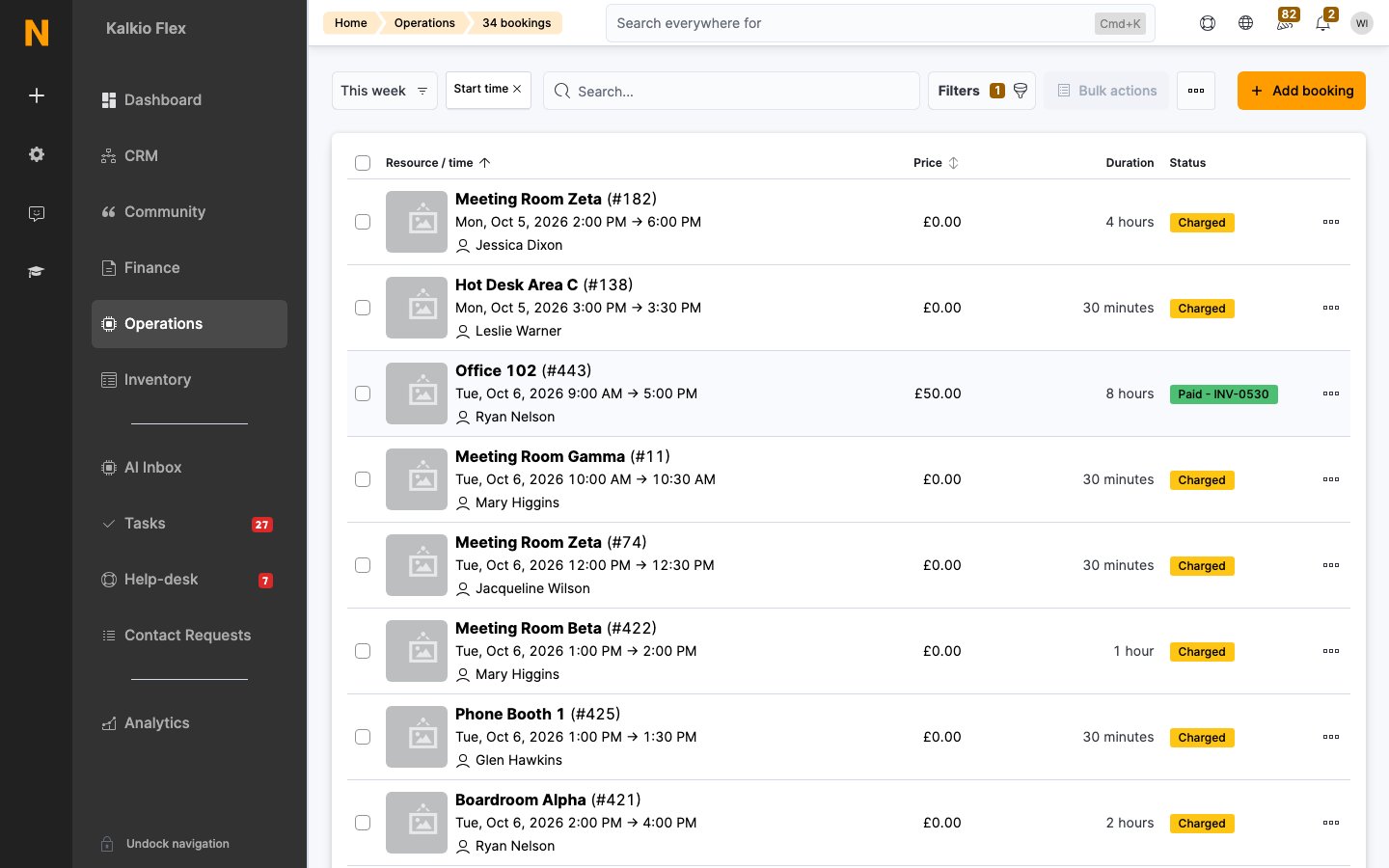
The Bookings section lets you manage reservations for your bookable resources — meeting rooms, hot desks, private offices, event spaces, and any other resources you offer. You can create bookings on behalf of customers, track availability in real time, apply pricing rates, use credits, add products (e.g., catering), and manage the full billing lifecycle from charge to invoice. Bookings integrate with your calendar, access control, and notification systems to provide a complete reservation experience for both operators and customers.How to access
Navigate to Operations → Bookings in the left sidebar.Requires the booking role.
Key concepts
The booking form
Tabs
Creating a booking
1
Select a customer (optional)
Choose the customer making the booking. If left empty, this is an “anonymous” booking (no billing).
2
Select a resource
Choose the resource to book. Only resources in your current location are shown.
3
Choose a desk/unit (if applicable)
If the resource has a floor plan with individual desks or units, you can select a specific one or leave it on “Automatically assign next available”.
4
Set start and end times
Use the date/time pickers or the duration shortcuts (1h, 2h, 4h, 8h). The availability calendar on the right shows existing bookings for that day so you can spot conflicts.
5
Add customer and internal notes (optional)
Customer notes are visible to the customer. Internal notes are only visible to staff.
6
Configure pricing
The system automatically calculates the best rate. You can override the price, select a specific rate, apply a discount code, or disable credit usage.
7
Choose billing options
- Calculate cost and post charges now — posts the charge immediately on save.
- Invoice this booking when saved — creates an invoice immediately.
- Invoice this customer directly — bypasses team merged billing.
8
Set repeat options (optional)
For recurring bookings, configure repetition (daily, weekly, specific days) and an end date.
9
Save
Click Save. The booking appears on the calendar and the customer is notified (if configured).
Booking details fields
Resource and time
Price and billing
Repeat booking
The price breakdown panel
When a resource and customer are selected, a pricing panel appears showing:How pricing works
Rates and resource types
Each resource belongs to a resource type (e.g., “Meeting rooms”). Rates are configured per resource type and define how much time in that resource costs. The system finds the cheapest valid rate for the selected resource, customer, and time slot. A rate specifies:- Price — cost per charge period
- Charge period — how cost is calculated: per minute, per day, per week, per month, or per use
- Resource types — which resource categories this rate applies to
- Plans — optionally restrict the rate to customers on specific plans
- Time restrictions — optionally apply only during specific hours
- Fixed cost — optionally charge a flat fee for an initial period (e.g., £10 for the first hour, then £5/hour after)
Charge period logic
The system evaluates all valid rates across charge periods and selects the cheapest option for the customer.
If a booking spans more than 24 hours, per-minute pricing is automatically excluded from consideration — only daily, weekly, or monthly rates apply.
Rate selection priority
- If a specific rate is selected on the booking form, that rate is always used.
- Otherwise, all valid rates for the resource type, customer plan, and time slot are evaluated.
- Default rates (marked as “default price”) are preferred when multiple rates match.
- The cheapest valid result wins.
Credits
Credits reduce the cost of bookings either by offsetting time (time credit) or money (money credit). Credits are typically included as benefits of a customer’s plan.Time credit
Time credits represent pre-paid usage hours for a resource type. For example, a plan might include “4 hours of meeting room time per month.”- Measured in the same charge period as the rate (minutes, days, etc.)
- Deducted from the booking duration before calculating the price
- If the booking is shorter than or equal to the available credit, the booking is free
- If the booking exceeds available credit, only the excess is charged
Money credit
Money credits represent a monetary balance that can be applied to booking costs. For example, “£100 booking credit per month.”- Deducted from the final price after time credit has been applied
- Can be restricted to specific resource types, plans, or passes
- Can optionally be used to pay for booking products too (controlled by the setting “Use available money credit to pay for products”)
- If the credit covers the full cost, no invoice is generated
- A separate charge line is created showing the credit offset
Credit priority
When a booking is charged:- Time credit is applied first (reduces the number of billable units)
- Money credit is applied second (reduces the monetary cost of remaining units)
- The remaining balance (if any) is the charge posted to the customer’s account
Booking products
You can attach additional products to a booking — items that the customer is ordering alongside the resource reservation (e.g., catering, AV equipment, flip charts).How it works
- Products must first be linked to the resource via resource products (configured on the resource detail page).
- When creating or editing a booking for that resource, the Products tab shows available products.
- Select products and set quantities.
- Product costs are added to the booking total (shown in the “Products” line of the price panel).
- When the booking is charged, products are posted as separate line items on the customer’s account.
Product pricing
- Each resource product can have a custom price that overrides the product’s default price.
- Products can be set to invoice in minutes — meaning their cost scales with the booking duration.
- If money credit is available and the “Use credit to pay for booking products” setting is enabled, credit is applied to products as well.
Attendees (booking visitors)
The Attendees tab lets you add guests who will attend the booking. Each attendee becomes a visitor record linked to both the booking and the host.- Attendees receive a visitor code for self-check-in
- If “Send booking confirmation to every guest” is enabled, each attendee receives a confirmation email
- Attendees appear in the Visitors list with a “Booking guest” badge
- The booking host (customer) is shown as the visitor’s host
Booking lifecycle and billing
A booking moves through these billing states:State definitions
When charges are posted
Booking charges are not simply posted “at invoice renewal.” Multiple independent processes determine when a booking is charged, depending on settings and the customer’s credit situation.Charge pathways
1. Credit-horizon charging (most common)
Triggered 5 minutes after any booking is created, updated, or deleted for that customer (debounced to once every 15 minutes per customer).The system calculates a “horizon” — the earliest expiration date among the customer’s active time credits and money credits. It then charges all uncharged bookings from the past 30 days up to that horizon date, in chronological order.Why? This ensures credits are consumed before they expire. If a customer has credit expiring on June 15 and makes a booking for June 10, the system charges the June 10 booking immediately so the credit is used while still valid.If the customer has no credits, the horizon is “now” — meaning only past bookings get charged.
2. Recurring background task (every 23 minutes)
A background job runs every 23 minutes and finds bookings that are “due for charging.” A booking is due when:
- It ended more than 5 minutes ago, OR
- It ends before the customer’s earliest credit expiration date (same horizon logic as above)
3. Up-front payment (cancel if not paid)
When “Require up-front payment” is enabled for the customer type (member or contact), online bookings are flagged with
CancelIfNotPaid.A background task (every 15 minutes) finds these bookings and:- Posts the charge immediately
- Creates an invoice
- Attempts payment collection
Bookings.CancelUnPaidBookingsAfter), the booking is automatically cancelled and charges are reverted.This only applies to online bookings (those made by the customer through the portal or calendar). Bookings created by administrators are not affected.4. Manual charge ('Post charges now')
4. Manual charge ('Post charges now')
When the “Calculate cost and post charges to customer account when this booking is saved” checkbox is enabled on the booking form, the charge is posted immediately when the booking is saved.The due date is set to now, meaning it will appear on the very next invoice.
Auto-invoicing after booking ends
Separately from charging, the system can also automatically invoice bookings after they end. When “Invoice and collect payment as bookings end” is enabled (for members or contacts), the system:- Waits until the booking ended at least 15 minutes ago
- Creates an invoice containing the booking charges
- Attempts to collect payment via the customer’s payment method
Due date strategies
The charge due date determines when the charge becomes eligible for inclusion on an invoice. It’s set based on the following priority:The due date is evaluated at the time the charge is posted. If a customer has multiple active plans with different strategies, the system uses the first matching strategy found across all active contracts.
Team billing and shared credits
When a customer belongs to a team with shared credits:- The paying member’s credit expiration dates are also considered when calculating the charge horizon
- If the team shares time credits or money credits, those are included in the charging eligibility window
- This means a booking for a team member may be charged earlier than expected if the paying member’s credits are about to expire
Cancelling a booking
When a booking is cancelled:- If not yet charged: no financial impact
- If charged but not invoiced: charges are reverted automatically
- If invoiced: the invoice is not affected (you must handle refunds manually)
Booking settings
Booking settings are found under Settings → Billing & products → Bookings (charges & payments section) and Settings → Billing & products → Bookings → General (behavior settings).Payment settings
General settings
Notification settings
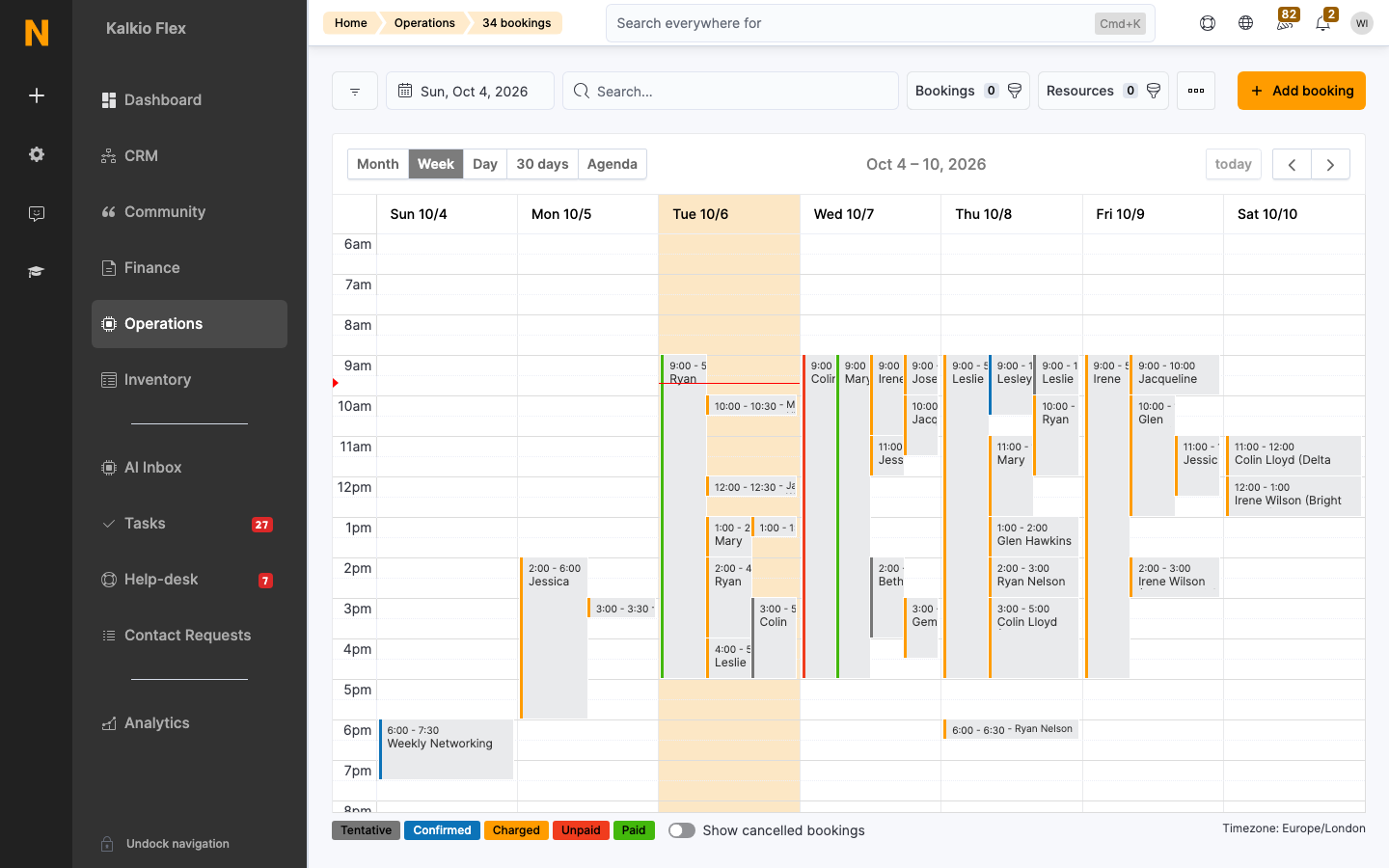
The booking calendar
In addition to the list view, bookings can be managed from the Booking Calendar (Operations → Calendar → Bookings). The calendar provides:- Day, week, and month views showing all bookings across resources
- Drag-and-drop to move or resize bookings
- Click to create new bookings directly on the calendar
- Resource filtering to show specific resources or resource types
- Conflict highlighting showing overlapping bookings
Repeat bookings
Repeat bookings create a series of bookings at regular intervals.Configuration
- Repeat every — frequency (e.g., every 1 week, every 2 weeks)
- Days — which days of the week (Mon–Sun)
- Until — end date for the series
Managing a series
When you edit a booking that belongs to a series, you’re prompted to choose which bookings to update:- This booking only — changes apply to the single occurrence
- This and following bookings — changes apply from this occurrence onwards
- All bookings in the series — changes apply to every occurrence
Quick filter segments
The booking list provides these quick filters:Dynamic pricing
If dynamic pricing is enabled for your location, booking prices can adjust automatically based on demand and timing:Demand-based pricing
Prices increase or decrease based on predicted demand for the time slot:- High demand — price increases by a configured percentage
- Average demand — price may adjust slightly or stay the same
- Low demand — price decreases by a configured percentage
Last-minute pricing
Prices can adjust for bookings made close to the start time:- Fixed — a set percentage discount/surcharge for all last-minute bookings
- Gradual — the adjustment scales linearly as the booking approaches (bigger discount the closer to the start time)
Commands
On existing bookings, the following commands are available:Best practices
- Use tentative bookings for holds that aren’t confirmed — they won’t be charged and can be easily removed.
- Let the system choose rates unless you have a specific reason to override — it always picks the cheapest valid option for the customer.
- Configure up-front payment for contacts to avoid no-shows from non-members who haven’t committed financially.
- Use time credits on plans to give members included booking hours — it’s the most transparent way to show value in a membership.
- Add products to resources for commonly requested extras (projectors, coffee, etc.) — this keeps everything on one invoice.
- Use the “Invoice this customer directly” checkbox when a team member is booking for personal use and shouldn’t charge the team.
- Review the “Charged” segment regularly to ensure bookings are being invoiced on schedule.
Related pages
Resources
Configure the bookable resources available at your location.
Time Credits
Manage time-based booking credits included in plans.
Visitors
Track attendees added to bookings as visitors.
Invoices
View and manage invoices generated from bookings.