

Overview
Plans (also called memberships) define what a membership includes, how often it’s invoiced, what benefits customers receive, and what limits apply. Plans are the foundation of your recurring revenue — every customer with an active contract is on a plan. A plan can represent:- A full-time desk or office membership
- A part-time hot-desking plan
- A virtual office with mail handling
- Storage-only access
- Any other recurring subscription model
How to access
Navigate to Inventory → Plans.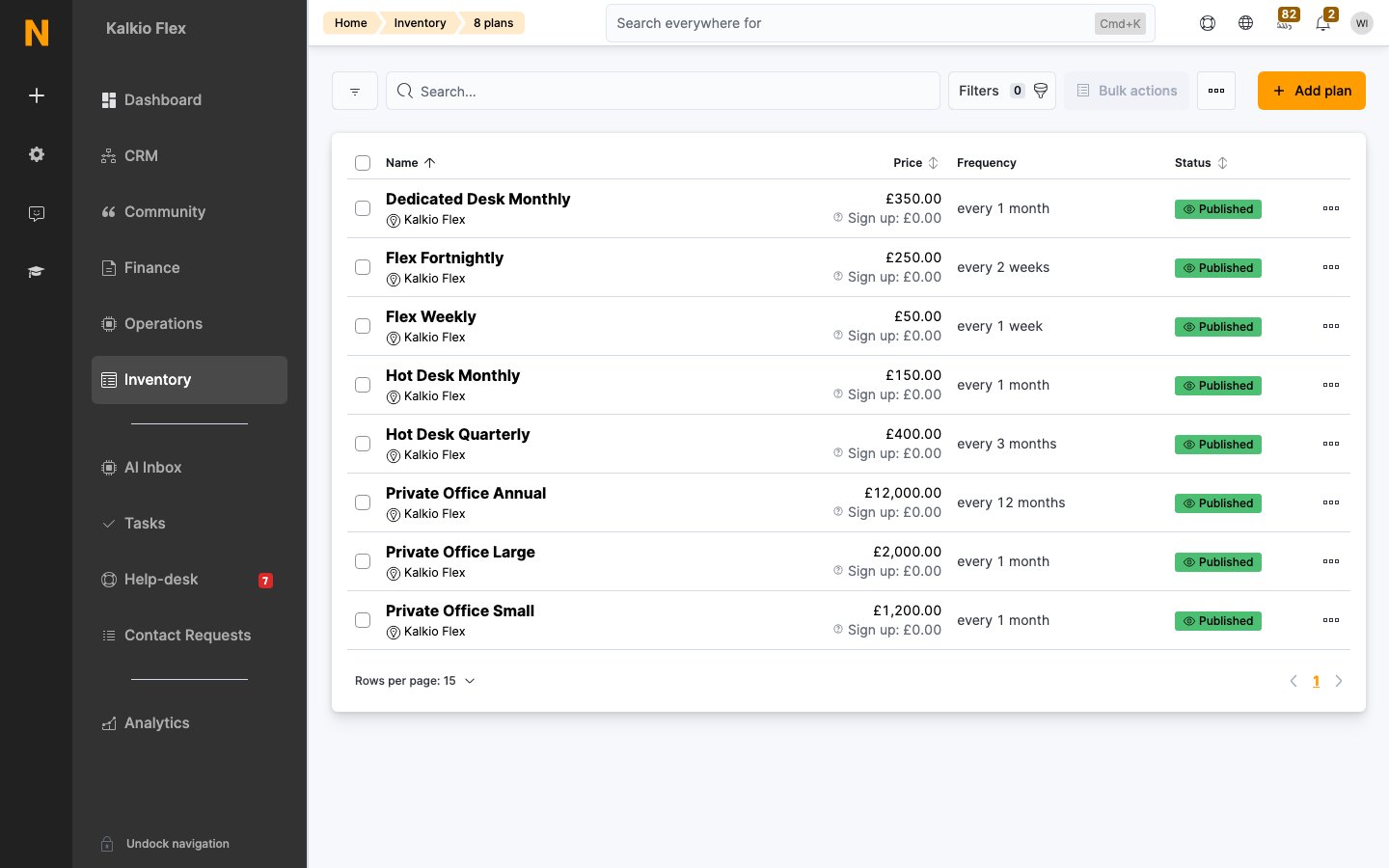
Requires permission to manage plans in your admin role.
Plan kinds
Every plan has a kind that classifies the membership type. This helps you organize your plans and is used in analytics.Creating a plan
1
Navigate to Plans
Go to Inventory → Plans and click + Add plan.
2
Enter plan details
- Plan name — a clear name shown to customers
- Plan kind — select the category that best fits
- Plan description — explain what’s included (shown in the members portal)
3
Set pricing and billing cycle
- Price — the recurring charge amount
- Every (months/weeks) — how often the plan is invoiced (e.g., 1 month, 3 months, 1 week)
4
Configure portal display
- Display this plan on the website/App — whether customers can see and purchase it
- Category — a grouping tag for the shop
- Display position — sort order
5
Save
Click Save to create the plan. Additional tabs become available for benefits, limits, restrictions, deposits, and legal terms.
Pricing and billing
Billing cycle
You can choose either month-based or week-based billing, not both. Setting one clears the other.
Additional invoices
You can create supplementary invoices between the main billing cycles — for example, invoice monthly but send a secondary reminder invoice every 2 weeks.Billing day and prorating
Billing day
First invoice prorating
Prorating discounts the first invoice when a customer signs up partway through a billing cycle.
How it works: If a customer signs up within the set number of days before the prorate day, their first invoice only charges for the days from signup to the prorate day. The rest of the billing cycle is deducted as a discount line on the invoice. Prorating only applies to the first invoice.
Example: A plan costs $100/month, with the prorate day set to the 1st and First invoice prorated discount set to 30 days. A customer signs up on January 15. That’s 17 days before February 1, which is within the 30-day window, so prorating applies. The 14 days they didn’t use (January 1–14) are discounted:
- Discount: $100 ÷ 31 days × 14 days = $45.16
- First invoice: $100 − $45.16 = $54.84
Last invoice prorating (cancellation discount)
How it works:
- Customer cancels mid-cycle
- The invoice period is shortened to the cancellation date
- Days from cancellation to the original period end are discounted using the same formula as first invoice prorating
- Discount: $100 ÷ 31 days × 11 days = $35.48
- Final invoice: $100 − $35.48 = $64.52
Advance invoicing
How it works:
- The system generates a single invoice containing multiple billing periods as separate line items
- Each line shows the date range it covers
- If the customer cancels during an advance period, the affected line is pro-rated (if last invoice prorating is enabled)
- Line 1: Jan 1 – Jan 31 ($100)
- Line 2: Feb 1 – Feb 28 ($100)
- Line 3: Mar 1 – Mar 31 ($100)
- Total: $300
Booking charges due date
Controls when charges from bookings (resources, meeting rooms) are added to invoices.Minimum price
Ensures a customer spends at least a certain amount each billing cycle, regardless of usage.
How it works:
- After the first billing cycle, the system calculates total spend (plan price + passes/bookings/events if selected)
- If total < minimum price, a line item is added: “[Plan Name] (min.)” for the difference
- This does not apply to the first invoice
AI agent settings
Control how AI agents in the Members Portal can recommend or sell this plan:Benefits
The Benefits tab lets you bundle credits, passes, and allowances with the plan. Customers automatically receive these when their contract is active.
Each benefit is a separate linked entity with its own expiration rules, usage limits, and renewal behavior.
Add a benefit
Open the plan’s Benefits tab and use Add money credit, Add time credit, Add pass or Add printing credit. For each one, choose what it can be used for, the amount, and when it renews or expires. Create passes, time credit types and printing credit types before adding them to a plan.Benefits don’t change the plan’s price. For example, if you add $100 of money credit to a $300 plan, the plan still costs $300 unless you change its price.
Choose how many passes to include
Passes let members check in, and door access and Wi-Fi check-in rely on them too. Decide how often passes are issued (for example every week or every billing period, which doesn’t have to match the billing cycle) and include enough to cover your opening hours in that period. For example, for a space open Monday to Friday, issue 5 day passes every week. Each pass benefit can include up to 500 passes.Flex access for teams
To let a team share a limited number of daily places, for example 5 desks for a 10-person company, give the pass benefit to the company’s plan and turn on Share access passes on the team. Everyone in the team can then check in until the day’s passes are used up. See Teams.Discounts
You can also configure percentage discounts on certain charges for customers on this plan:Limits
Limits control customer behavior on a plan. These settings appear under the Limits tab.Cancellation and pausing
Account management
Contract terms
The minimum contract term and cancellation notice period are set at contract creation from the plan defaults. Changing them on the plan does not affect existing contracts.
Restrictions
Restrictions are hard limits — once a customer reaches them, they are blocked from further use, even if they purchase additional passes or credits.Access day restrictions
Access time restrictions
Booking time restrictions
Visitor restrictions
Deposits and sign-up fees
Under the Deposits tab, you can add one-off charges that are invoiced when a customer signs up.Plan components
Plan components are products that are added to the contract as recurring charges. They are invoiced every cycle along with the plan price.Virtual office plans
With the Virtual Offices add-on, you can make a plan a virtual office plan: a business address and mail handling, without use of your space. Virtual office plans have a Virtual Office tab where you choose the delivery handling options and charges, limit recipients and addresses, and set up identity and AML checks. Under Virtual office onboarding, choose the documents you accept as proof of address and, for manual ID checks, as proof of ID. Leave a list empty to accept every document type. Proof of address can include a Bank statement. There’s no list to choose when ID checks use Stripe Identity, which checks the document itself. To change what one customer is asked for, edit their check in CRM → Identity checks. See Identity checks. See Virtual office plans and Onboarding and compliance.Legal
The Legal tab lets you attach terms and conditions to the plan. Customers must accept these terms when signing up.Archive or delete a plan
You can’t delete a plan that has ever been sold, even if all its contracts have ended. Archive it instead: tick it in the plans list and archive it. Archived plans stay in your account but can’t be used for new contracts. Find them in the Archived plans view. Plans that have never been sold can be deleted from the list.Find a plan’s ID
Open the plan; its ID is the number at the end of the address in your browser. You need it for validation rules, automation tiles and the API.Best practices
- Use descriptive names — customers see these in the portal, so make plan names clear (e.g., “Full-time Hot Desk – 24/7 Access” instead of “Plan A”).
- Use fixed billing days for easier accounting — all customers are billed on the same day, simplifying cash flow tracking.
- Enable minimum price for usage-based plans to ensure baseline revenue.
- Link deposits to plans instead of adding them manually — sign-up fees and key deposits should be configured on the plan so they’re automatic.
- Use plan components for bundled add-ons (parking, lockers) instead of separate products.
- Set minimum contract terms to reduce churn — require customers to commit for a minimum period (e.g., 3 months).
- Enable cancellation notice periods to give yourself time to fill vacancies.
Related pages
Products
Create products to use as sign-up fees, deposits, or plan components.
Contracts
Manage customer contracts linked to plans.
Resources
Configure resources and link them to plans via access rules.
Virtual Office Onboarding
The customer-facing onboarding flow for virtual office members.
Identity checks
Manage and override identity verification checks for individual customers.