

Overview
Visitors is your list of everyone coming to your space who isn’t checking in as a customer: guests of your customers, people attending a booked meeting, and prospects coming for a tour. Visitors can be registered by your team, by their host in the Members Portal, or at your front desk with NexIO. Each visitor gets a check-in code, and their host is told when they arrive.How to access
Go to Operations → Visitors.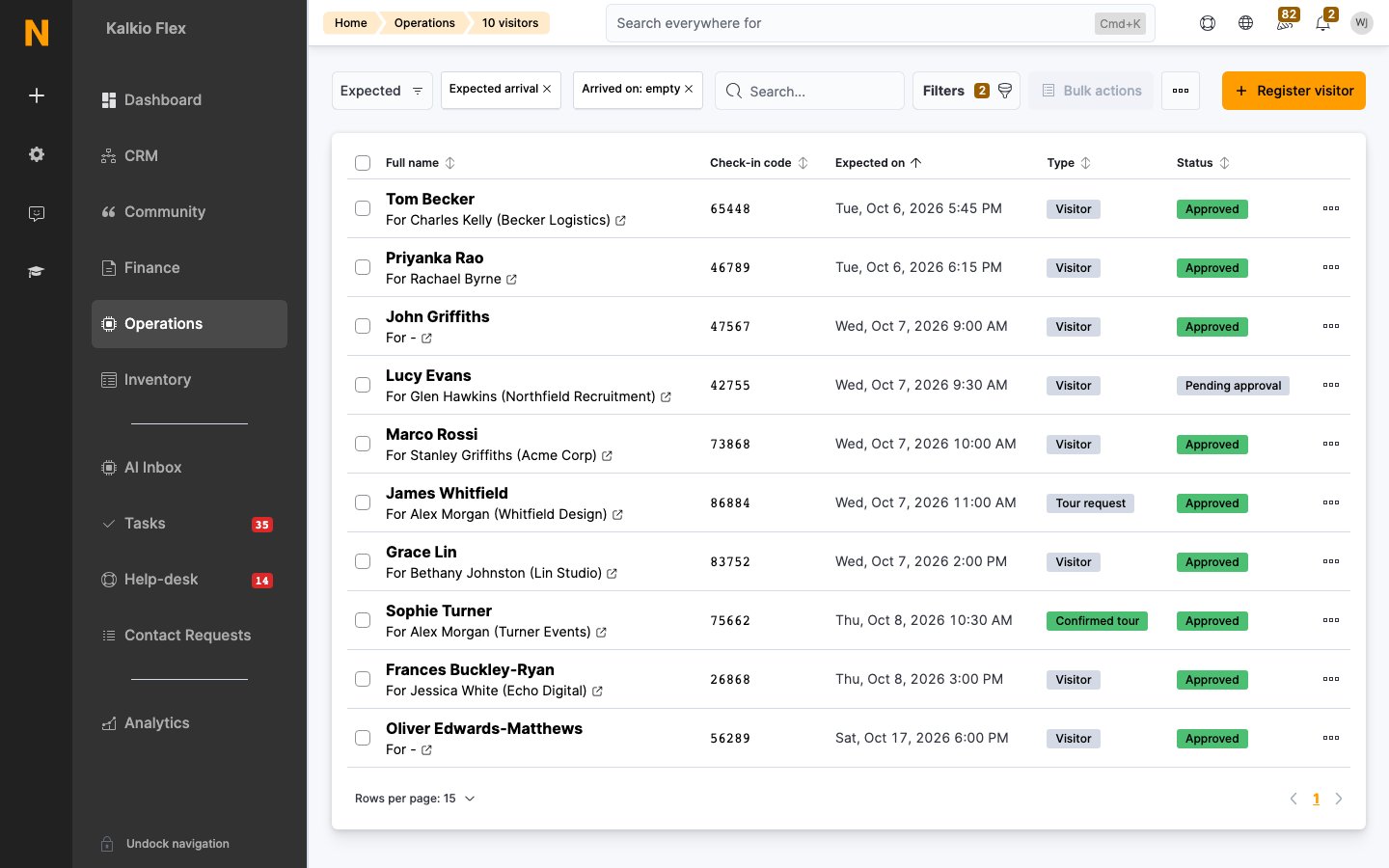
Views
Use Filters to narrow the list by the visitor’s name, code or email, the host or their email, team, resource, visit reason, whether they’re on a tour, and their expected or actual arrival.
Register a visitor
- Select Register visitor.
- Enter the Visitor full name and Visitor email, and optionally their Visitor phone, Visitor company and Reason for the visit.
- Fill in any custom fields for visitors you’ve set up.
- Set the Expected arrival.
- Choose the Host: the customer, or member of your team, they’re visiting.
- If they’re coming to look round your space, tick This visitor is coming for a tour
- If they’re already at your front desk, turn on Check this visitor in now
- Save.
The visitor record
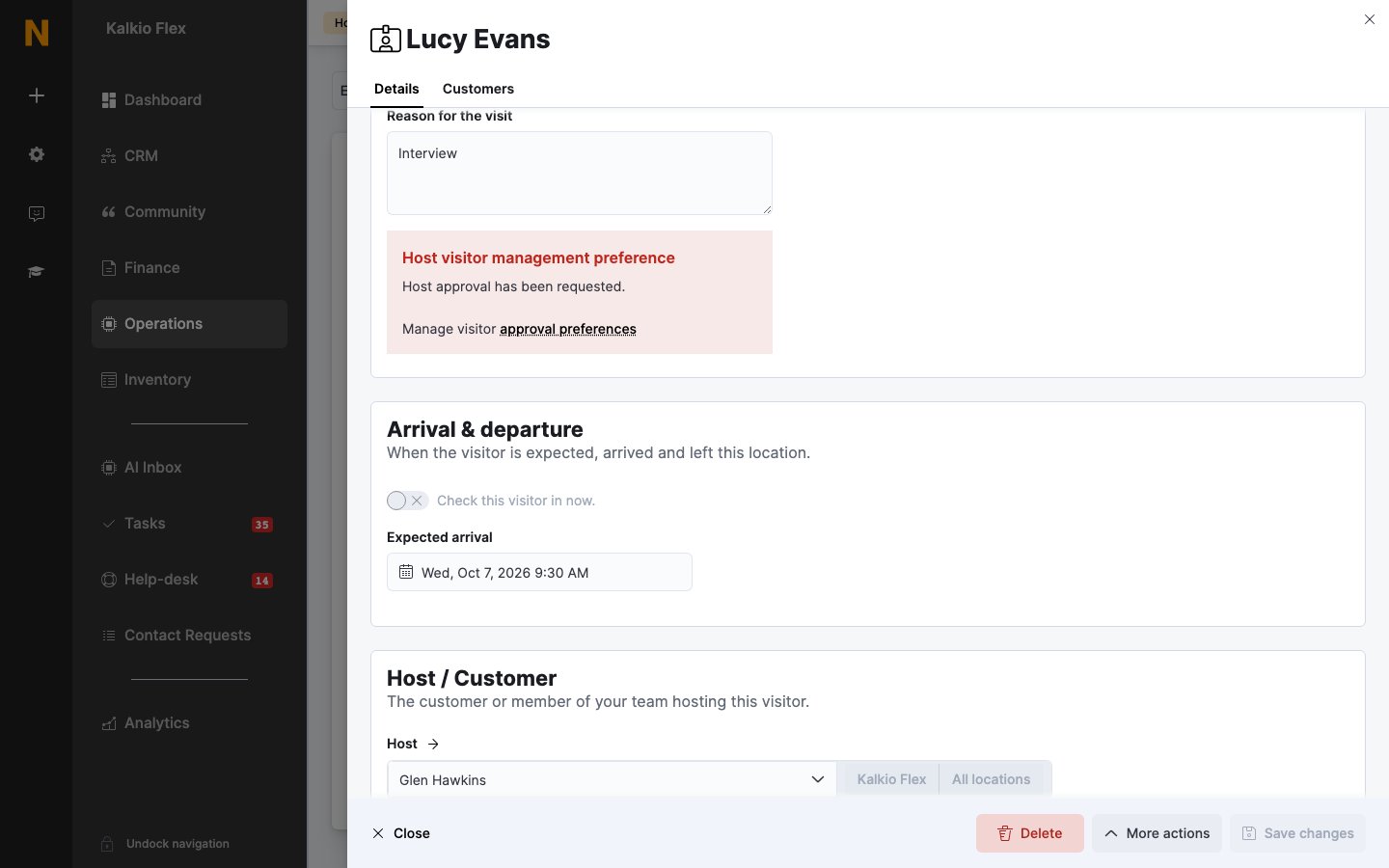
The Customers tab lists any customer records with the visitor’s email address, so you can spot a visitor who’s already a customer.
Custom fields for visitors
Use custom fields to ask for more than the standard details when visitors are registered, such as a vehicle registration for parking, the purpose of the visit, or how many guests are coming with them. Create the field in CRM → Custom fields with the Visitor record type. On its Visibility tab, under Visitor registration forms, choose where it’s shown:
Turn on one, both or neither. For example, ask for a vehicle registration only on the Members Portal form, so you can plan parking ahead, and ask walk-in visitors who they’re visiting only at NexIO.
Tick Make this field required if visitors can’t be registered without it. Nexudus rejects a Members Portal or NexIO registration that leaves a required field empty. Any field data type works: a Yes/No field for “Needs step-free access”, an Options menu for the visit category, or a Whole number for accompanying guests.
The answers are saved on the visitor:
- The visitor record. Visitors registered in the Members Portal or the app show the registration form’s fields, visitors who registered at NexIO show the self-registration fields, and visitors your team registers show every visitor field. Visitor source on the record says where the visitor was registered from: Customer, NexIO or Administrator.
- The Members Portal. Customers see the answers in their list of visitors. See My visitors.
- The visitor list. Use Filters to find visitors by any visitor custom field, or by Source.
Booking guests don’t have custom fields. They’re added from the booking, not from a visitor registration form.
Check visitors in and out
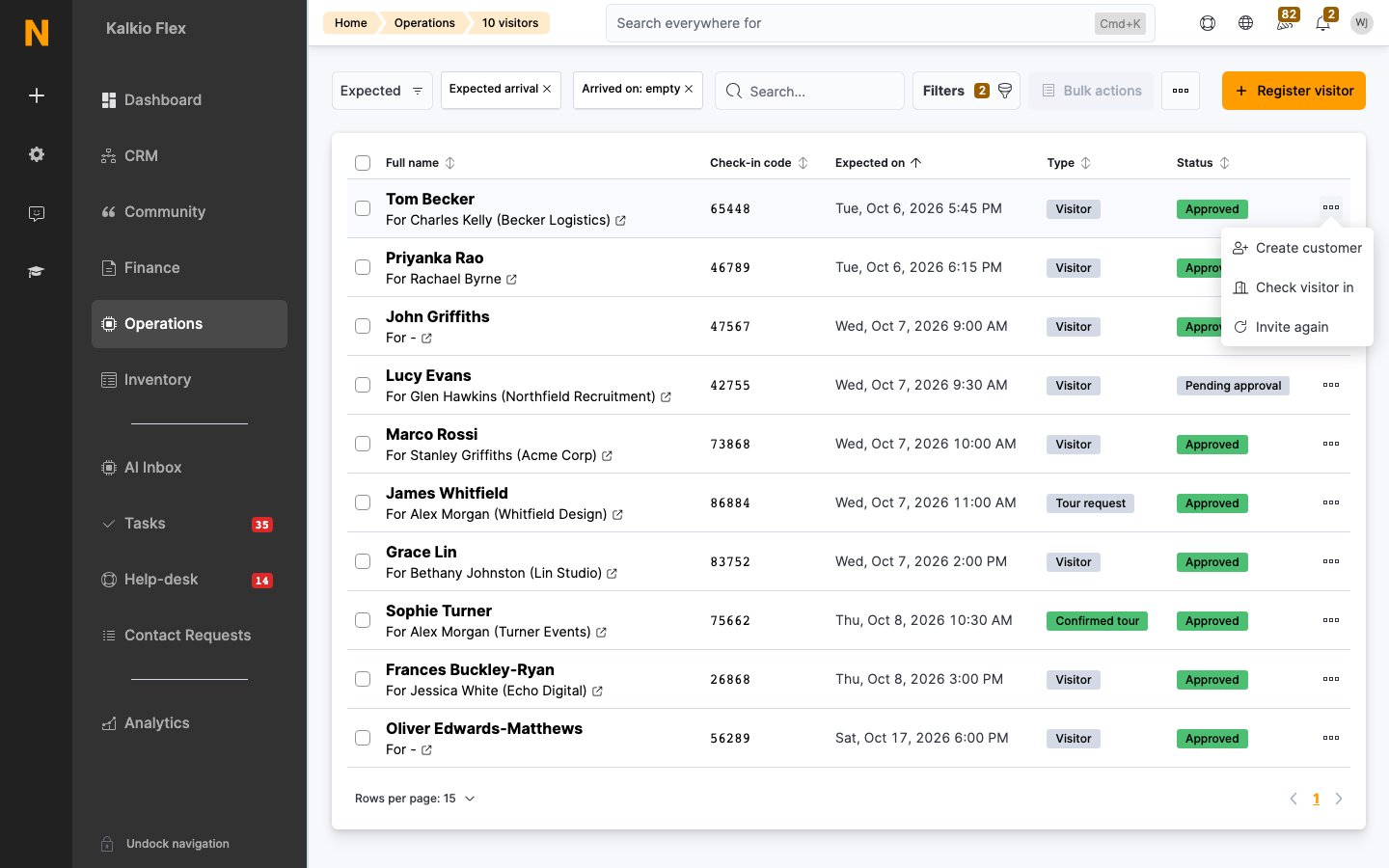
- Check visitor in: marks them as arrived and tells their host. They move to the On site view.
- Check visitor out: marks them as having left.
Tours
A tour is a visitor coming to look round your space, with a member of your team as their host. Tours come in as Tour request until you confirm them.- Find the tour in Requested tours.
- Open its actions menu and select Confirm tour. The visitor is sent the Tour request confirmation email, and the tour moves to Expected tours.
- When they arrive, select Check visitor in.
- If they decide to join, select Create customer. See Turn a visitor into a customer.
Booking guests
When a customer, or your team, adds guests to a booking, each guest becomes a visitor linked to the booking and to the customer who booked. They show as Booking guest in the list, with the resource name. See Create and edit bookings. Two settings under Settings → Features → Bookings and calendar settings → General add more people to your visitors list:
To email each guest a booking confirmation, turn on Send a booking confirmation to every guest added to the booking. See Booking notifications.
Visitor approval
You can ask hosts to approve visitors who walk in and register at your NexIO front desk before they’re let in. Hosts can answer by email, in the app, or on WhatsApp, and choose to collect the visitor from reception or let them come up. Visitors registered by your team, or by their host, never need approving.- Visitor approval: turn it on and choose the options hosts get.
- Visitor approval on WhatsApp: let hosts answer by WhatsApp message.
Emails and notifications
To the visitor and host
Edit the emails in the email templates editor.
To your team
Admins with Visitor registrations turned on, under their user’s Notifications, are emailed:- When a visitor is registered. There are separate emails for booking guests and other visitors.
- When a host accepts or rejects a visitor.
Webhooks
Use webhooks to send visitor activity to other systems: Visitor CREATED, Visitor CHECKED IN, Visitor NOTIFIED and Visitor DELETED.WiFi and door access for visitors
- WiFi. Turn on Generate an access token for every pre-registered visitor to give each visitor a WiFi code. See WiFi access for visitors.
- Doors. Some access control systems can give visitors access for their visit. Visitors who need their host’s approval only get access once they’re approved. See Access control.
Limit how many visitors customers can bring
- Per plan. On the plan’s Restrictions tab, under Visitor restrictions, set Visitors per day, Visitors per week or Visitors per month. Members on that plan can’t register more visitors once they reach the limit, and admins can’t override it either. Contacts aren’t limited this way.
- A member with several plans gets the limits added together. If any of their plans has no limit, they’re not limited.
- A limit of 0 means members on that plan can’t have visitors at all.
- Usually one limit is enough: a weekly limit of 2 already caps visitors at about 8 a month.
- Turn off visitor registration in the portal. Under Settings → Features → Website → Features, turn off Enable the visitor registration section. No customer can register visitors themselves, including adding guests to bookings; admins can still register visitors for them.
Invite a visitor again
To invite someone who’s visited before, open their actions menu and select Invite again. Nexudus creates a new visitor with the same details, and you choose the new expected arrival.Turn a visitor into a customer
Open the visitor’s actions menu, or tick several visitors, and select Create customer. A customer record is created from the visitor’s details. If there’s already a customer with their email address, no new record is created.Export visitors
To download the list, open the … menu next to Bulk actions and select Export. The option shows how many visitors it will export, so choose a view or filter the list first.Delete visitors
Open the visitor and select Delete, or tick several visitors and delete them from Bulk actions.Related
Visitor approval
Ask hosts to approve visitors before they’re let in.
Visitor approval on WhatsApp
Let hosts approve visitors by WhatsApp message.
Bookings
Manage the bookings visitors attend as guests.
Check-ins
See who’s on site.