When visitors walk in without being pre-registered, you can require the host to approve the visit before granting access. This is especially useful for secure spaces or locations with a staffed front desk.

Approval statuses


Configuring visitor approval

Visitor approval settings are found under Settings → Apps and integrations → Companion apps → NexIO.
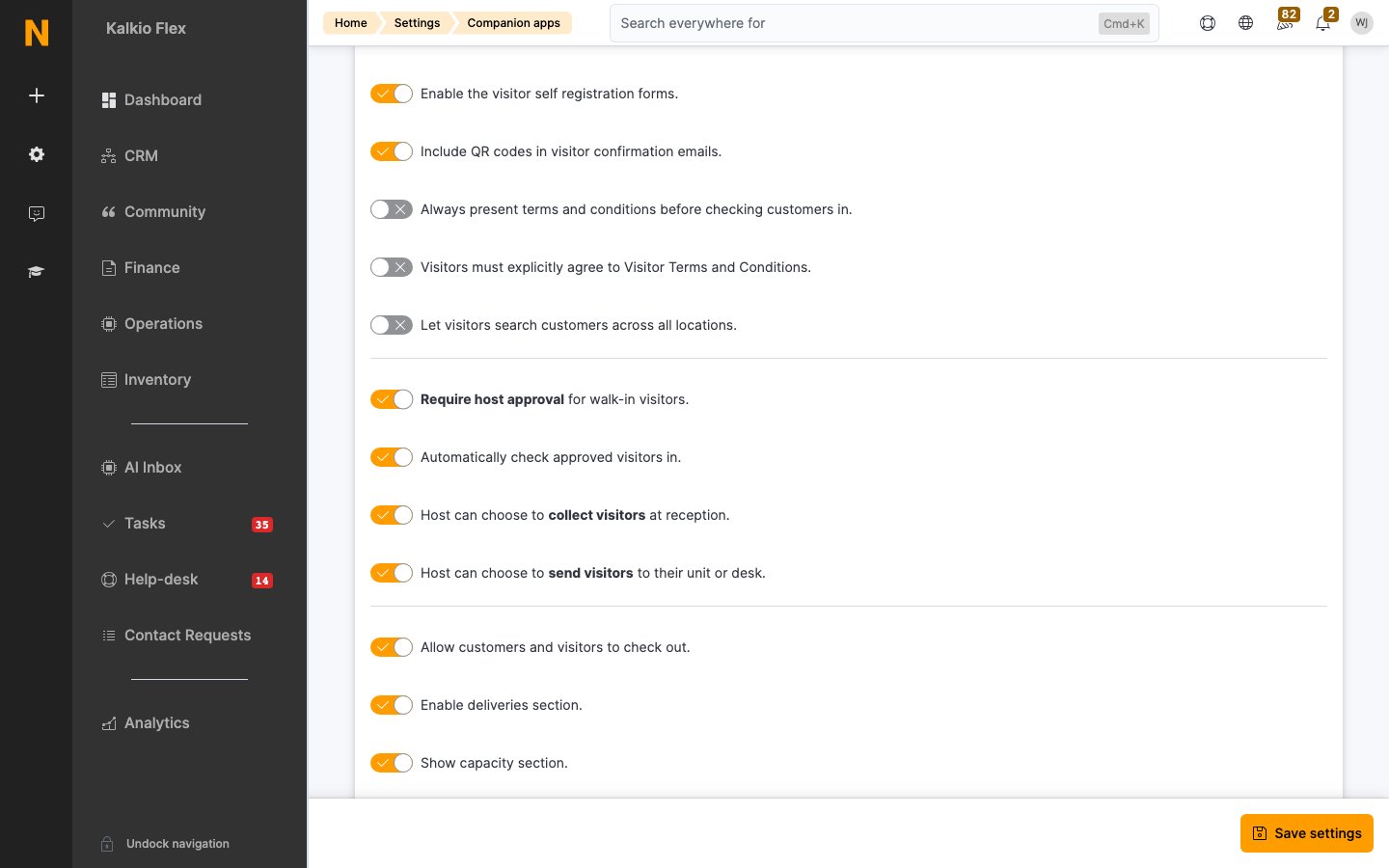
You can disable either the “collect at reception” or the “grant access” response option to simplify the host’s decision. If you disable both, only the reject option remains available.

When approval is triggered

Visitor approval is only triggered when all of the following are true:
  1. The “Require host approval” setting is enabled for your location.
  2. The visitor is registered via NexIO (walk-in self-registration at a kiosk or front-desk tablet).
  3. A host (customer) is assigned to the visitor.
Visitors created by staff in the Dashboard or by customers from the Members Portal always receive a “Not required” status — they are considered pre-approved by nature of who registered them.

How the approval flow works

1

Visitor self-registers at NexIO

The visitor enters their details and selects a host at the NexIO kiosk. The visitor’s status is set to Requested.
2

Host receives an approval request

The system notifies the host through every channel you have enabled:
  • Email — always sent. The email contains action buttons to approve or reject.
  • WhatsApp — sent when the AI WhatsApp channel is enabled for the location and the host has a mobile number on their customer profile. See Visitor approval on WhatsApp.
  • Mobile app push notification — sent to hosts who have the Passport mobile app installed and signed in.
The available actions depend on your settings:
  • Accept — collect at reception: Host will come to get the visitor.
  • Accept — grant access: Visitor can proceed to the host’s desk.
  • Reject: Visitor is turned away.
3

Host responds

The host clicks one of the action links in the email, taps the Passport mobile app push notification, or replies to the WhatsApp message (with a number, a natural-language reply such as “approve Alex”, or “approve all” for multiple visitors). The visitor’s approval status is updated as soon as the host confirms the decision.
4

Staff and host are notified

Staff members subscribed to visitor notifications receive a system message indicating the visitor was accepted or rejected. If “Automatically check approved visitors in” is enabled and the host chose to grant access, the visitor is also checked in automatically.

Visitor limits on plans

You can restrict how many visitors a customer can invite per day, week, or month by setting limits on their pricing plan. These limits are defined on each plan and enforced at the time a visitor is created: If the customer exceeds the limit for their active plan(s), the visitor cannot be created and an error is displayed.
Visitor limits are cumulative across all active contracts — if a customer has two plans that both include visitor limits, the totals are summed.

Notification channels

Email approval request

The system always sends an email to the host with action buttons to approve or reject the visitor. This email includes:
  • The visitor’s name, company, and reason for visit
  • Expected arrival time
  • Action buttons for each available response option

WhatsApp approval

When the AI WhatsApp channel is enabled, hosts receive the approval request as a WhatsApp message and can reply with a number, in natural language, or process multiple visitors at once. See Visitor approval on WhatsApp for full setup and configuration.

Mobile app push notification

Hosts who have the Passport mobile app installed receive a push notification and can approve or reject directly from the app.

Best practices

  • Enable approval for secure spaces where you need explicit host permission before granting visitor access.
  • Use the “grant access” option to reduce front-desk workload — approved visitors can proceed directly to the host’s area.
  • Encourage hosts to use WhatsApp for fastest response times, especially for mobile workers.
  • Set visitor limits on plans to control how many guests members can invite and prevent abuse of the privilege.
  • Review pending approvals regularly using the “Requested” status filter on the visitors list.

Visitors

Main visitor management — registration, check-in, and lifecycle.

Visitor Approval on WhatsApp

Configure WhatsApp approval messages and let hosts respond conversationally.

NexIO

Configure the walk-in visitor self-registration kiosk.

Members & Contacts

Manage the customers who host visitors.