Documentation Index
Fetch the complete documentation index at: https://learn.nexudus.com/llms.txt
Use this file to discover all available pages before exploring further.
Overview
Passes (also called time passes) control when customers can check in at your locations. They are time-limited access tokens that grant physical entry, WiFi access, and access control system permissions. A pass can be:- Valid for a single calendar day (unlimited use that day)
- Valid for a specific number of minutes spread across multiple days
- Included in a plan (customers get them automatically with their contract)
- Sold as standalone products (one-off purchases)
- Assigned automatically via pay-as-you-go (charged per session when the customer checks out)
If you have an access control system (Kisi, Salto, Gallagher) or WiFi tracking (IronWiFi) connected to Nexudus, passes control access via these systems as well.
How to access
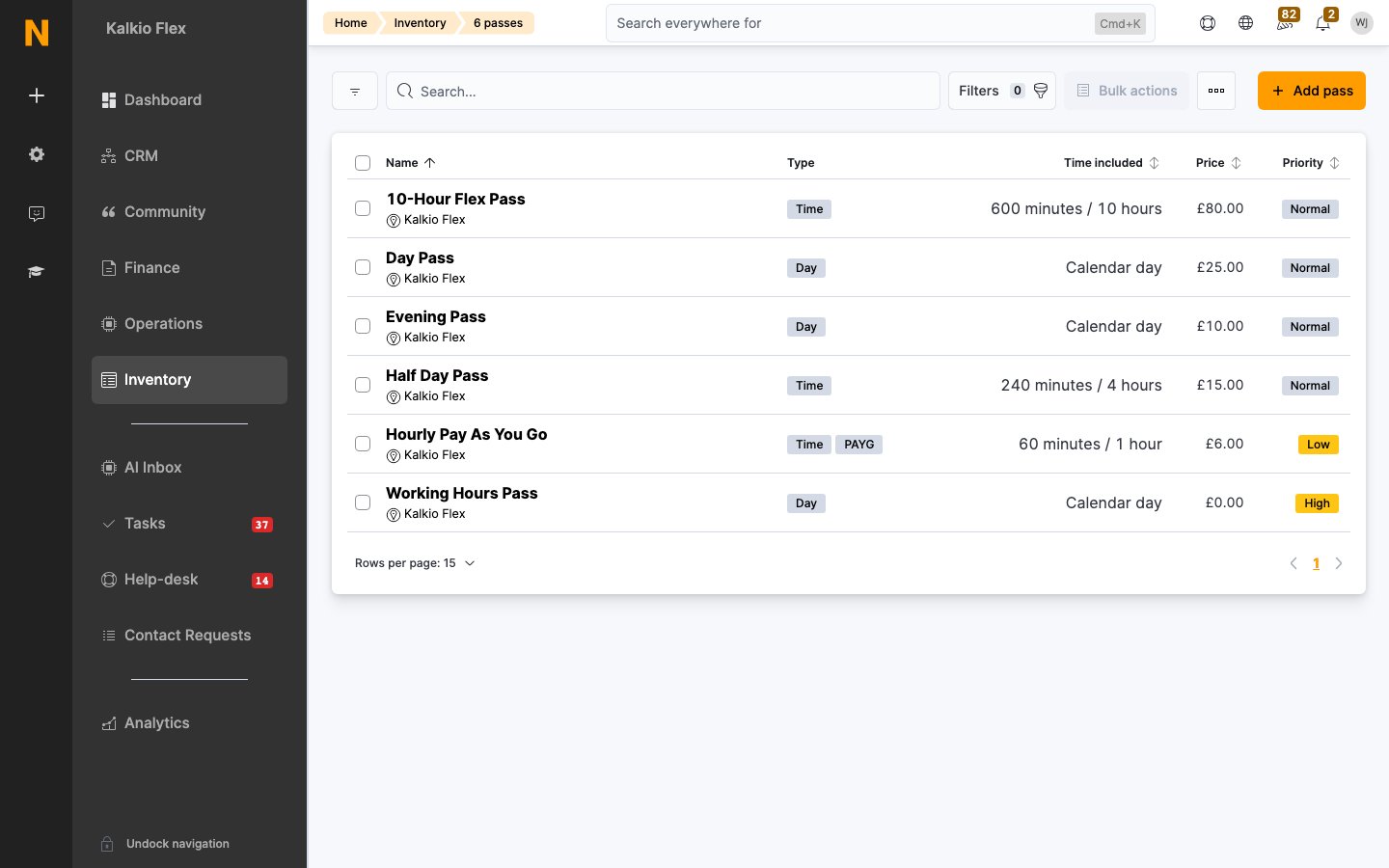
Navigate to Inventory → Passes.Requires the timePass role.
Pass types
Calendar day passes
A calendar day pass is valid for one full calendar day, from the location’s cutoff time (e.g., 3:00 AM) until the next cutoff time. Customers can check in and out as many times as they want during that day. Use cases:- Daily coworking passes
- Single-day event access
- Trial day passes
Minute-based passes
A minute-based pass is valid for a specific number of minutes that can be used across multiple days. When the customer checks in, minutes start counting down. When they check out, the used time is deducted from the pass. Use cases:- Hourly coworking packages (e.g., “10 hours”)
- Flexible access blocks
- Part-time memberships
For pay-as-you-go pricing, the shortest billable interval is 15 minutes. If a customer stays 10 minutes, they are charged for 15.
Creating a pass
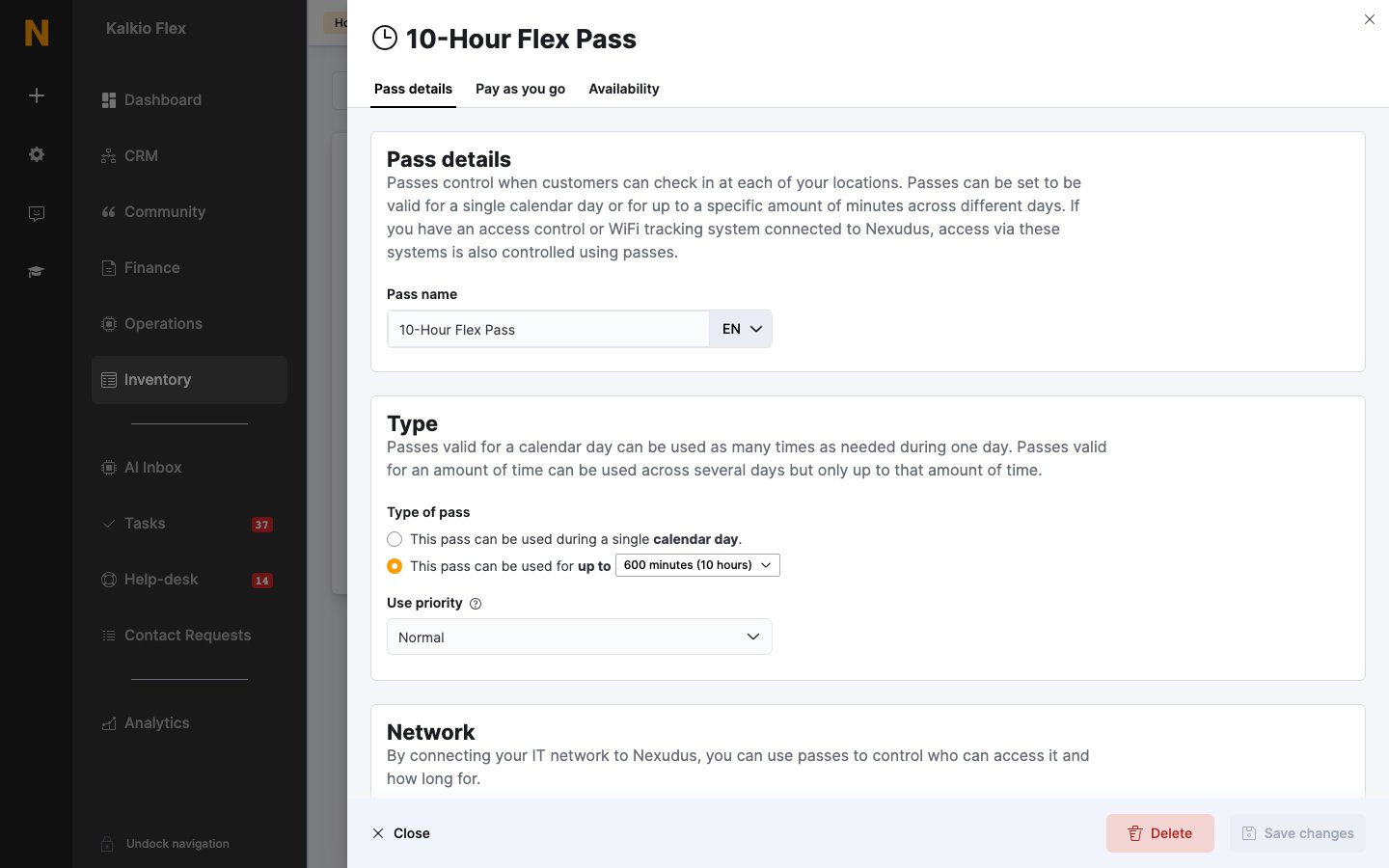
Choose the type
Select either:
- This pass can be used during a single calendar day (unlimited use that day)
- This pass can be used for up to [X] minutes (specify the number of minutes)
Configure availability
Under the Availability tab:
- Select which locations the pass is valid at
- Set which customers can use it (all, members only, contacts only, or specific plans)
- Set the days and hours the pass can be used
Pass details
General settings
| Field | Description |
|---|---|
| Pass name | The name displayed to customers and in the portal |
| Available at | The primary location this pass belongs to. In network mode, you can select a network location to make the pass available across all child locations. |
Type of pass
| Option | Description |
|---|---|
| Calendar day | Valid for one full day (from cutoff time to next cutoff time). The customer can check in and out unlimited times during that day. |
| Minute-based | Valid for a specific number of minutes (e.g., 60, 120, 480). The customer can use these minutes across multiple check-ins until they run out. |
Use priority
When a customer has multiple valid passes available at check-in time, the system uses them in order of priority:| Priority | When used |
|---|---|
| High | Used first |
| Normal | Used after high-priority passes |
| Low | Used last |
Network check-in
| Field | Description |
|---|---|
| Allow customers holding this pass to connect to your IT network | Enables WiFi access control via IronWiFi or similar integrations. When enabled, customers with this pass can connect to your WiFi network. |
Billing
Passes support the same billing fields as products:- Currency
- Tax rate
- Financial account
Pay as you go
Pay-as-you-go (PAYG) passes are automatically assigned to customers who check in without a valid pass. The customer is charged when they check out based on how long they stayed.Enabling pay-as-you-go
| Field | Description |
|---|---|
| Automatically sell this pass to contacts | When enabled, contacts (customers without an active contract) checking in without a valid pass are automatically assigned this pass. |
| Automatically sell this pass to members | When enabled, members (customers with an active contract) checking in without a valid pass are automatically assigned this pass. |
To use pay-as-you-go, you must also enable the Pay as you go option in your location’s check-in settings.
Standard price
The standard price is the default cost of the pass. For pay-as-you-go minute-based passes, this price represents the full duration. Pricing calculation for minute-based PAYG passes:- If a pass includes 60 minutes and costs 20 ÷ 60 = $0.33
- A customer staying 30 minutes is charged: 30 × 10
- A customer staying 10 minutes is charged for 15 minutes (minimum): 15 × 5
- The full price is charged regardless of how long the customer stays
Special prices
You can set different prices for customers on specific plans. For example:- Plan A customers: $15 for a 60-minute pass
- Plan B customers: $10 for a 60-minute pass
- All others: $20 (standard price)
Availability
Location validity
By default, a pass is valid at the location it belongs to and all its child locations. You can restrict this further:| Configuration | Valid at |
|---|---|
| No locations selected | The pass’s home location + all child locations |
| Specific locations selected | Only the selected locations |
- Your network has 3 locations: London (parent), London East (child), London West (child)
- A pass created under “London” with no specific locations selected → valid at all 3 locations
- A pass created under “London” with only “London East” selected → valid only at London East
Customer restrictions
| Option | Who can use the pass |
|---|---|
| All customers | Anyone (members and contacts) |
| Members only | Only customers with an active contract |
| Contacts only | Only customers without an active contract |
| Members on specific plans | Only customers with active contracts on the selected plans |
Available times
By default, passes can be used 24/7. You can restrict passes to specific days and hours: Example:- Monday–Friday: 9:00 AM – 6:00 PM
- Saturday–Sunday: 10:00 AM – 4:00 PM
How passes work with check-ins
When a customer checks in
-
Nexudus looks for all passes the customer has that:
- Are valid at the check-in location
- Can be used by the customer (member/contact/plan restrictions)
- Are valid at the current date and time (time slot restrictions)
- Have remaining uses or minutes
-
If multiple passes match:
- High priority passes are used first
- Then normal priority
- Then low priority
-
If no valid pass is found:
- If pay-as-you-go is enabled for this customer type (member/contact), a PAYG pass is created automatically
- Otherwise, the check-in is blocked (appears as a failed check-in)
Calendar day pass check-in
- The pass is marked as “used” for that calendar day
- The customer can check in and out unlimited times until the day ends (cutoff time)
- The pass becomes available again the next day (if it has remaining uses)
Minute-based pass check-in
- A counter starts tracking the customer’s time
- When the customer checks out, the used minutes are deducted from the pass
- If the customer stays longer than the pass’s minutes, the pass is fully consumed
- If time remains, the pass can be used again on future check-ins
Automatic checkout
If a location has automatic checkout enabled (e.g., 11:59 PM or after 12 hours), customers are automatically checked out:- Calendar day passes: no charge (already used for the day)
- Minute-based passes: time up to checkout is deducted
- PAYG passes: customer is invoiced for the full session
How passes work with access control systems
When integrated with physical access control (Kisi, Salto, Gallagher) or WiFi (IronWiFi), passes control hardware access:| Integration | How it works |
|---|---|
| Kisi | Each pass is linked to a Kisi group. When a customer has an active pass, they are added to that Kisi group and can unlock doors via the Kisi app or access card. |
| Salto | Similar to Kisi — passes map to Salto user groups and control door access. |
| Gallagher | Passes map to Gallagher cardholder groups. |
| IronWiFi | When Allow network check-in is enabled, customers with valid passes can authenticate to your WiFi network. Access is revoked when the pass expires or runs out of minutes. |
Access control permissions are updated in near real-time. When a pass expires or runs out, the customer loses hardware access within minutes.
Pass expiry
Passes can expire in several ways:| Expiry type | Description |
|---|---|
| Number of uses | Calendar day passes can be limited to X uses (e.g., 5 day pass = 5 check-ins) |
| Expiry date | Passes can have a fixed expiry date (e.g., valid until Dec 31st) |
| Minutes consumed | Minute-based passes expire when all minutes are used up |
| Plan renewal | Passes included in a plan expire when the contract is canceled or not renewed |
Common use cases
1. Day pass for drop-ins
Configuration:- Type: Calendar day
- Price: $25
- Available times: Monday–Friday, 9 AM – 6 PM
- Pay-as-you-go: Enabled for contacts
2. 10-hour flex pack
Configuration:- Type: 600 minutes (10 hours)
- Price: $80
- Validity: 30 days from purchase
3. Members-only evening pass
Configuration:- Type: Calendar day
- Price: $10
- Available times: Monday–Friday, 6 PM – 11 PM
- Purchasable by: Members only
4. Network-wide pass
Configuration:- Available at: Network location (parent)
- Locations: All child locations selected
- Type: Calendar day
Best practices
- Set PAYG passes to low priority so customers exhaust included passes before being charged extra.
- Use minute-based passes for flexible part-time arrangements (e.g., “20 hours per month”).
- Restrict PAYG to contacts if you want members to only use their included passes.
- Set expiry dates on purchased passes to encourage usage within a reasonable timeframe.
- Use special pricing to reward loyal customers on higher plans with discounted PAYG rates.
- Configure available times carefully — if a pass has time restrictions, customers physically cannot access the space outside those hours (if using access control).
- Test location validity thoroughly in multi-location setups — ensure passes work at the intended locations before selling them.
- Use “Allow network check-in” to control WiFi access separately from physical access.
Related pages
Plans
Include passes in membership plans as benefits.
Products
Bundle passes with products to create pass packages.
Check-ins
Monitor who is checked in and review check-in history.
Access Control
Configure hardware integrations that use passes to control physical access.