Overview
Resource rates (also called booking rates) define how your bookable resources — such as meeting rooms, hot desks, and conference facilities — are priced when customers make reservations. Resource rates give you flexible control over pricing by letting you:- Set different prices for members vs contacts (non-members)
- Create time-based pricing — hourly, daily, weekly, or monthly rates
- Apply minimum and maximum booking durations to each rate
- Set fixed-cost tiers — a flat price for bookings up to a certain length, then a different rate
- Restrict rates to specific time windows (e.g., business hours only)
- Apply date range restrictions (e.g., seasonal pricing)
- Configure dynamic pricing based on demand levels and last-minute bookings
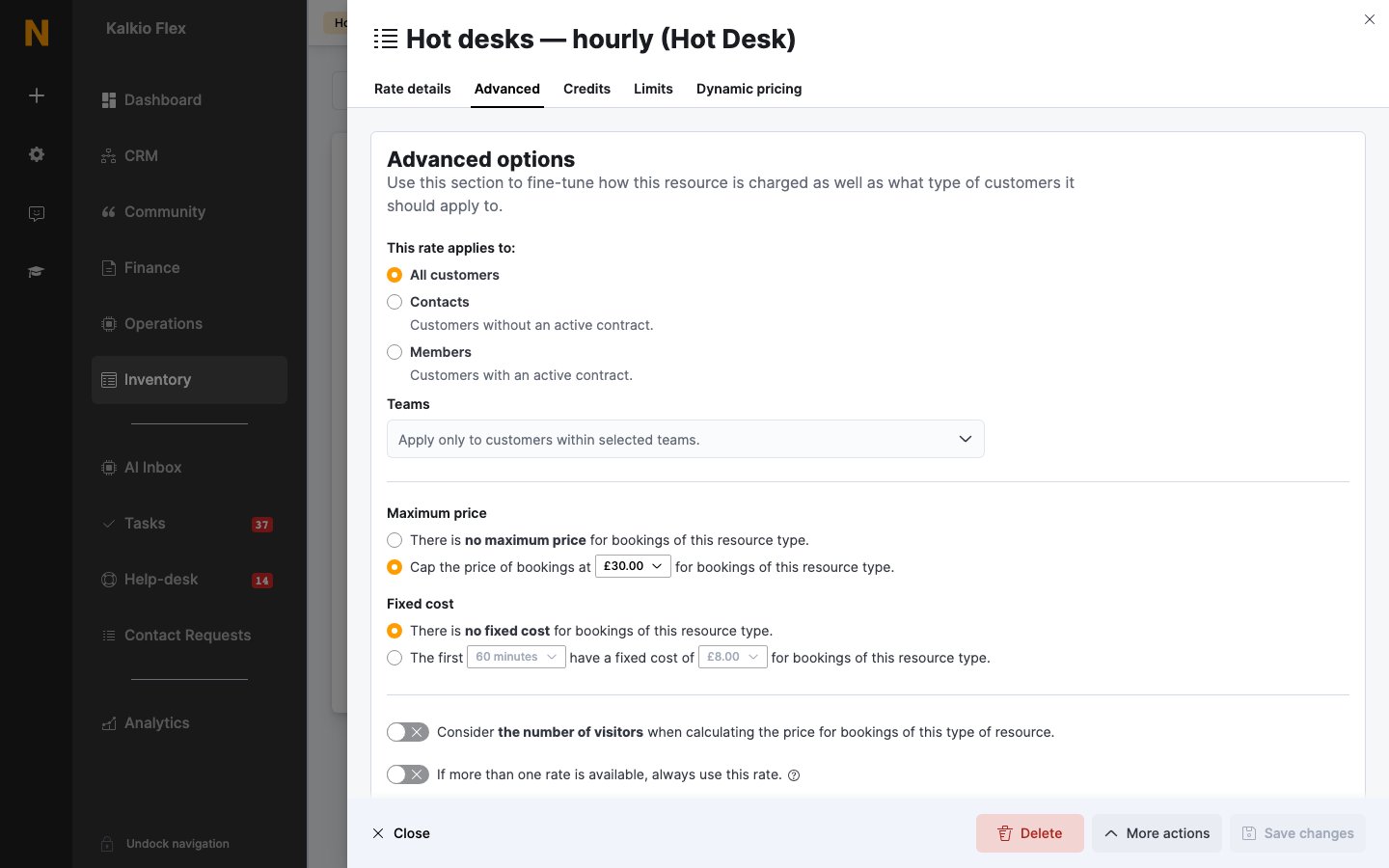
- Set a price cap to maximum charges
- Create printing credit allowances separate from booking time
Requires the resource rate role.
Creating a resource rate
You must create resource types before setting up resource rates. Rates are assigned to resource types, so all resources of that type will use the same rate. Manage resource types at Resource Types.
1
Navigate to Resource rates
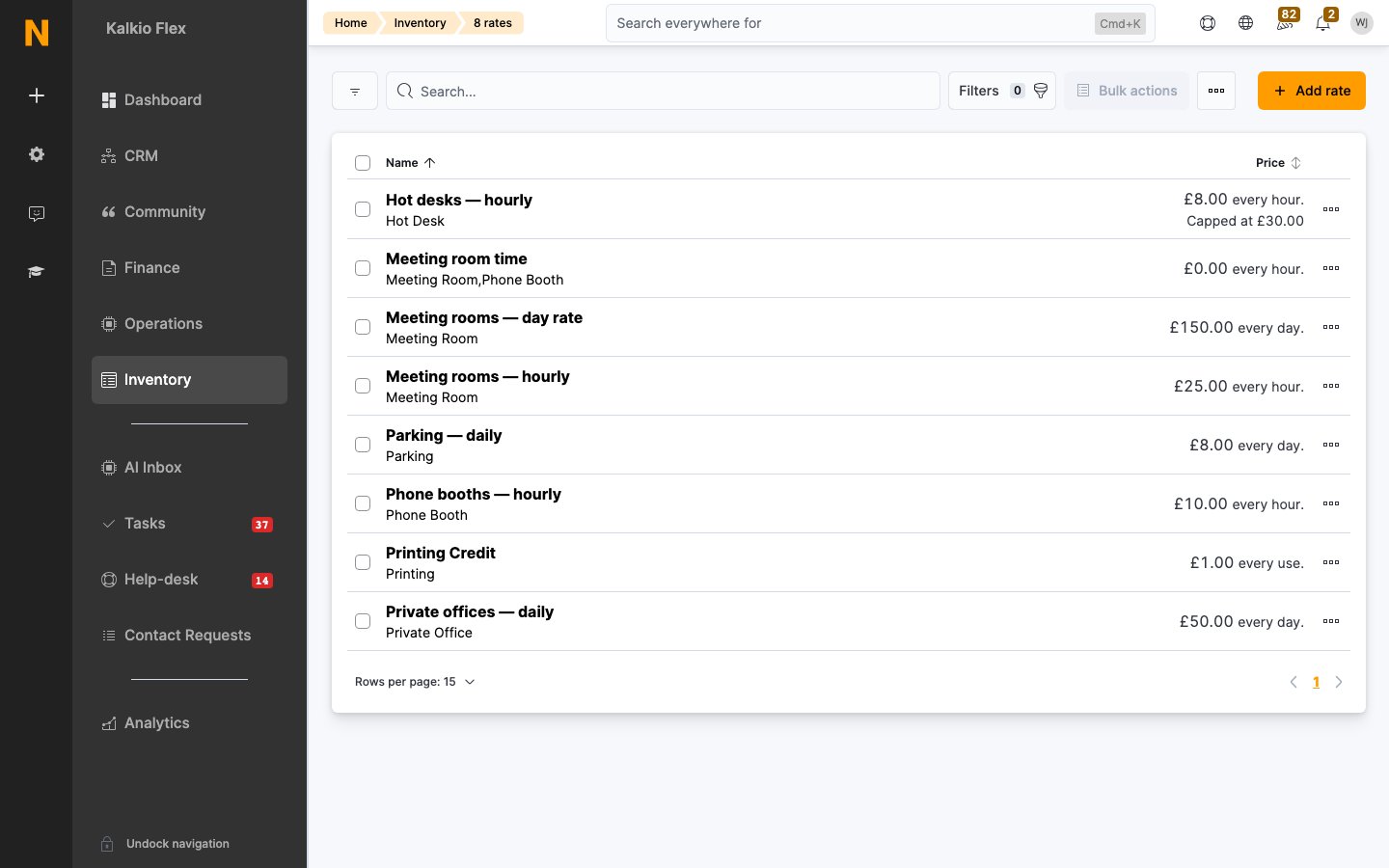
Go to Resource rates and click the + Add rate button.
2
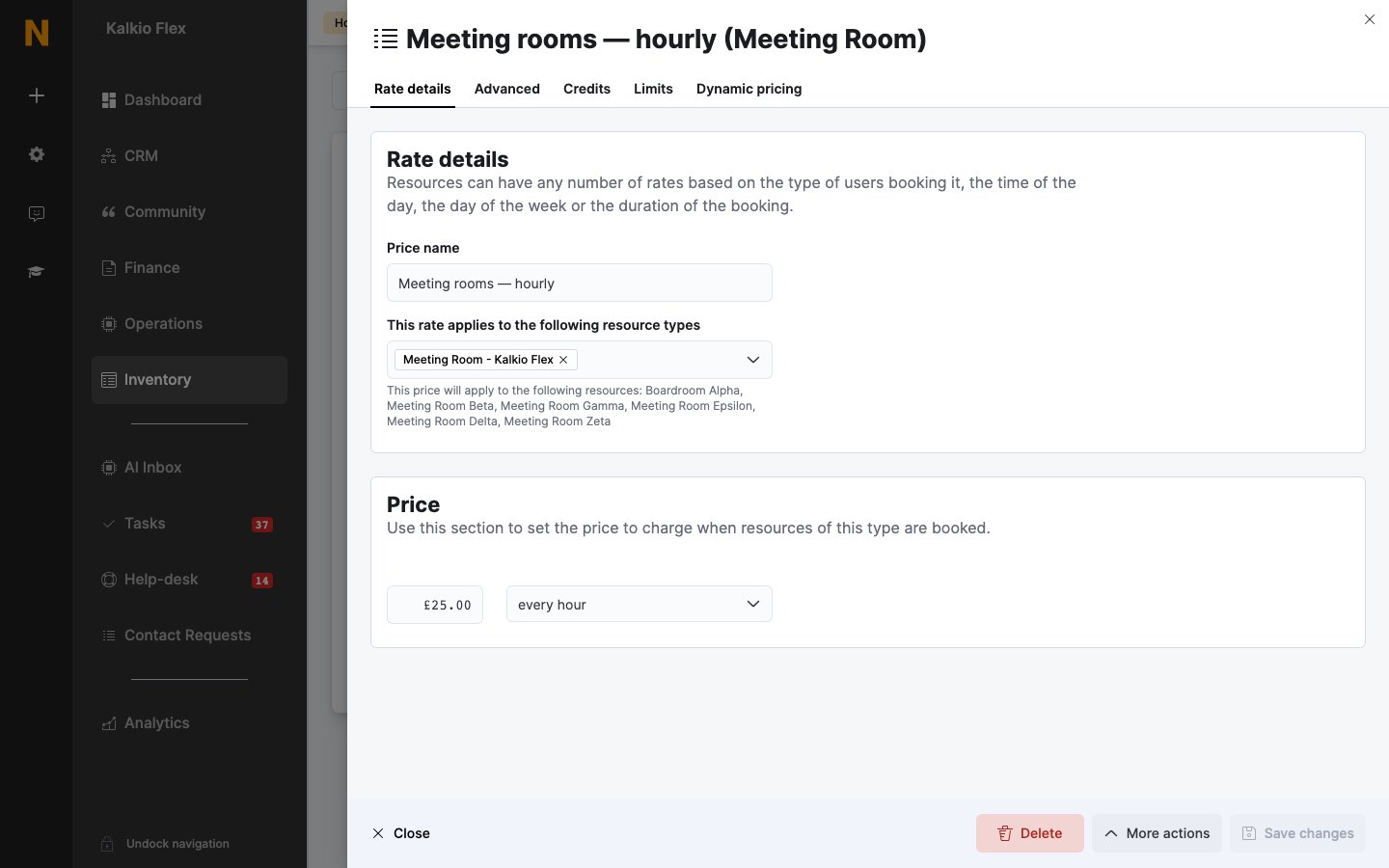
Enter rate details
Fill in the required fields:
- Name — a clear name for this rate (e.g., “Hourly meeting room — members”)
- Price — the amount charged per charge period
- Charge period — how the price is measured (hourly, daily, weekly, monthly, or uses)
- Resource types — select which resource types this rate applies to (must be created first)
3
Configure pricing rules
Set any additional pricing restrictions as needed:
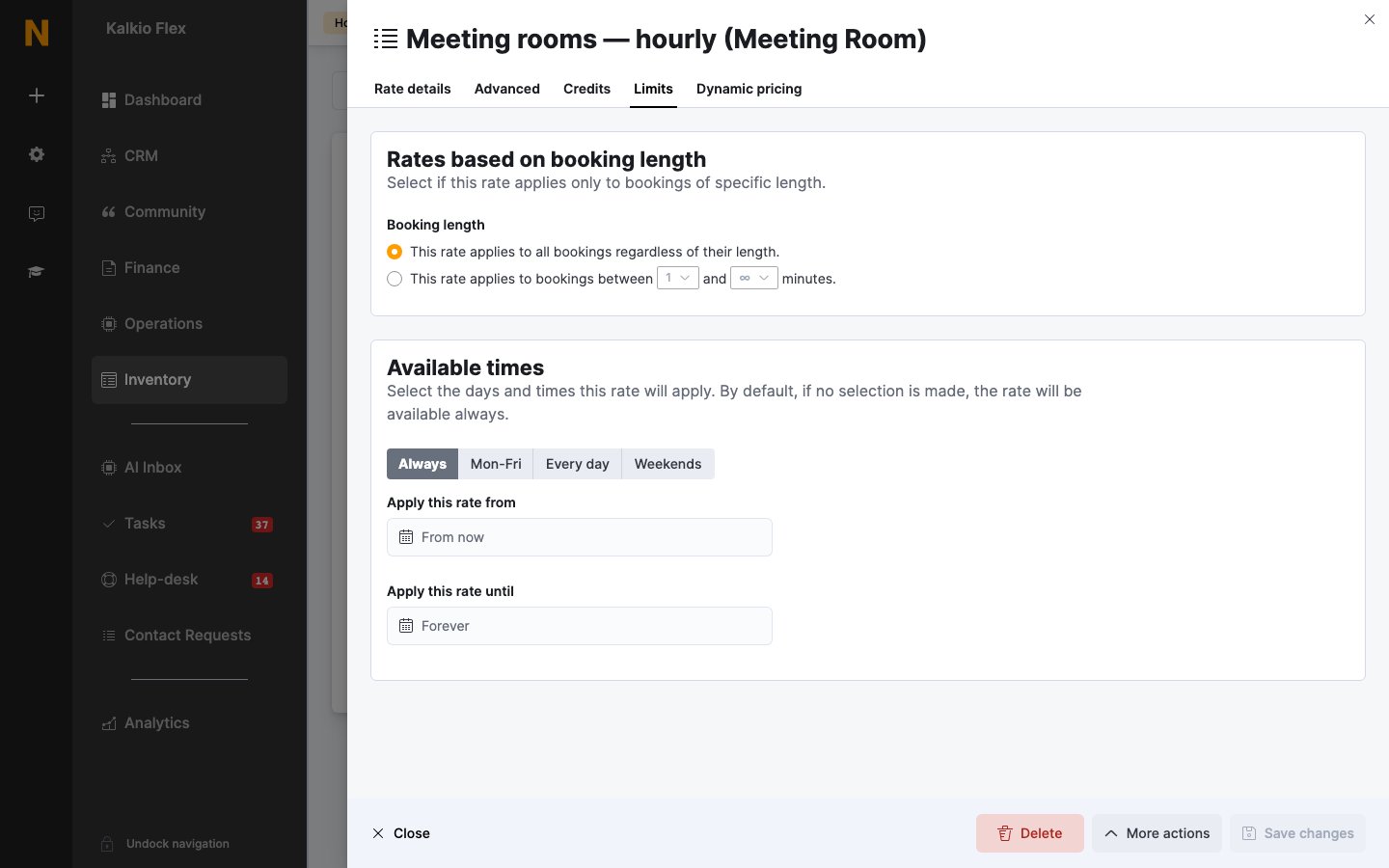
- Minimum/maximum length — restrict booking durations
- Fixed-cost pricing — set a flat rate for bookings up to a certain length
- Time restrictions — limit when bookings can use this rate
- Date range — set start and end dates for the rate
4
Set customer restrictions
Choose who can use this rate:
- Members only — available to customers with an active contract
- Contacts only — available to customers without an active contract
- Charge visitors — apply the charge to visitor bookings
5
Save
Click Save to create the rate.
Rate fields explained
General fields
Pricing fields
Booking length restrictions
Time and date restrictions
Customer restrictions
Tax and financial fields
Tariff associations
Setting up hourly, half-day, and full-day pricing
For time-based pricing, set the Charge period to every hour and enter the price for 60 minutes. The system interprets a charge period of “every hour” as hourly billing. We recommend setting up pricing with separate rates for different booking durations. This gives customers clear pricing options and ensures fair charges for longer bookings.Recommended setup: Hourly + Half-Day + Full-Day rates
Step 1: Create the hourly rate (up to 4 hours) This rate applies to short bookings of 4 hours or less.
Step 2: Create the hourly rate for longer bookings (4+ hours)
This rate applies to bookings longer than 4 hours and uses the full-day rate.
This setup ensures that:
- Bookings of 1–4 hours are charged at the hourly rate ($50/hour)
- Bookings of 4+ hours are charged at the flat full-day rate ($200)
- A 5-hour booking costs the same as a 4-hour booking ($200), giving customers better value for longer bookings
Alternative: Separate half-day rate
If you want to offer a distinct half-day rate that’s different from 4 × hourly, create a third rate:
In this case, the system will automatically apply the most appropriate rate based on booking length:
- 1–2 hours: Hourly rate
- 2–4 hours: Half-day rate (capped at $180)
- 4+ hours: Full-day rate ($200)
Setting up dynamic pricing
Resource rates support dynamic pricing based on demand levels and last-minute bookings. This allows you to charge more during peak times and less during low-demand periods.Demand-based pricing
A price factor of
1.0 means no change to the base price. Values below 1.0 reduce the price; values above 1.0 increase it.
Last-minute pricing
How resources, resource types, and rates work together
Understanding the relationship between resources, resource types, and resource rates is key to setting up pricing correctly:
How it works:
- You create resource types to group similar resources together
- You assign resource rates to those resource types
- When a customer books any resource of that type, the assigned rate(s) apply
Multiple rates per resource type
A single resource type can have multiple resource rates associated with it. This is common when you want to offer:- Different rates for different charge periods (hourly, half-day, full-day)
- Different rates for members vs contacts
- Different rates for different time windows (business hours vs evenings/weekends)
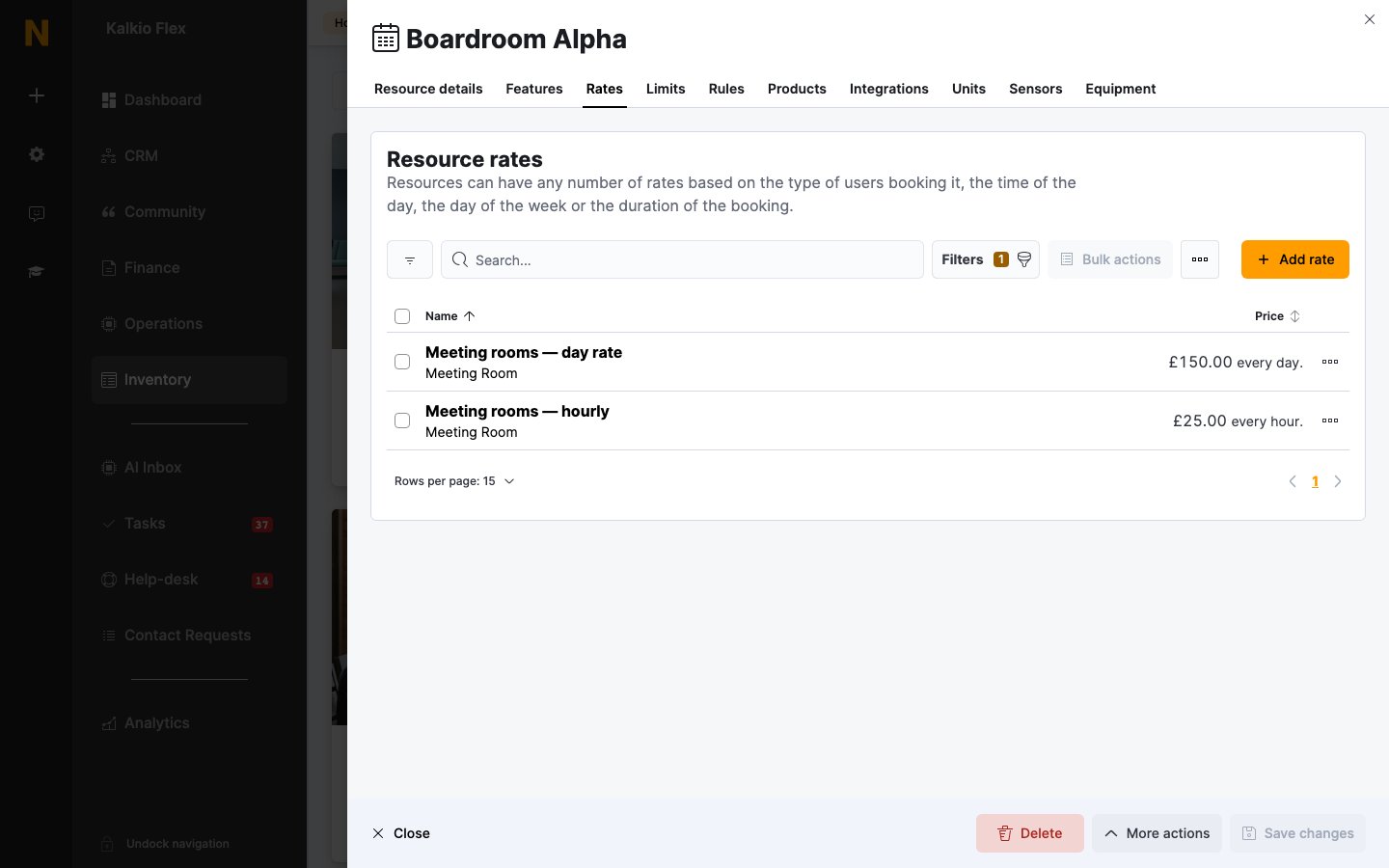
Resource rate list view
The resource rates list displays the following information for each rate:Best practices
- Use clear, descriptive names — rates are shown to customers in the portal, so make them easy to understand (e.g., “Meeting room — hourly — members”).
- Set up multiple charge periods — offer hourly, half-day, and full-day rates to give customers pricing flexibility.
- Use minimum/maximum lengths — prevent very short bookings that aren’t worth the administrative overhead.
- Set default rates — when you have multiple rates for the same resource type, mark one as default to avoid confusion.
- Use fixed-cost pricing for tiers — create attractive bulk pricing (e.g., first 2 hours at one rate, then a lower hourly rate).
- Apply time restrictions — avoid customers booking during off-hours at peak rates, or charge premium rates for evenings/weekends.
- Use date ranges for seasonal pricing — set up different rates for high season vs low season without deleting old rates.
- Separate member and contact rates — offer preferential pricing to members while maintaining higher rates for non-members.
- Enable dynamic pricing strategically — use demand-based pricing for popular resources during peak periods.
- Test rates before going live — create test bookings to verify rates apply correctly before making them visible to customers.
Related pages
Products
Create one-off items and services customers can purchase.
Plans
Set up membership plans that can include resource rate discounts.
Resources
Configure the bookable resources that resource rates apply to.
Resource types
Group similar resources together for unified pricing.
Time credits
Configure time credit allowances for resource bookings.
Discount codes
Create promotional discounts that can be applied to bookings.