

Before you start
Make sure the AI assistant is already enabled for your space. The email channel is an extension of the existing AI assistant — it will not work unless the base AI assistant is active.
- Administrator access to your Nexudus account.
- Access to your email provider’s settings (Gmail, Outlook, or any provider that supports automatic forwarding).
How the email channel works
When you enable the email channel, Nexudus generates a dedicated AI inbox address for your space. Any email sent to this address (or forwarded to it) is processed by the AI assistant, which reads the message, runs the appropriate tools, and sends a reply email back to the sender. The reply comes from your space’s AI assistant, with your space name in the sender field, so members see a branded response rather than a generic system email.
Step 1 — Enable the email channel in Nexudus
1
Open your AI settings
In the Nexudus administration panel, go to Settings > Channels > Email.
2
Switch on AI Email
Toggle the AI Email setting to on. This activates the email channel for your space.
3
Copy your AI inbox address
Once enabled, Nexudus displays your space’s AI inbox address. This is the address you will forward emails to. It looks like:Copy this address — you will need it in the next step.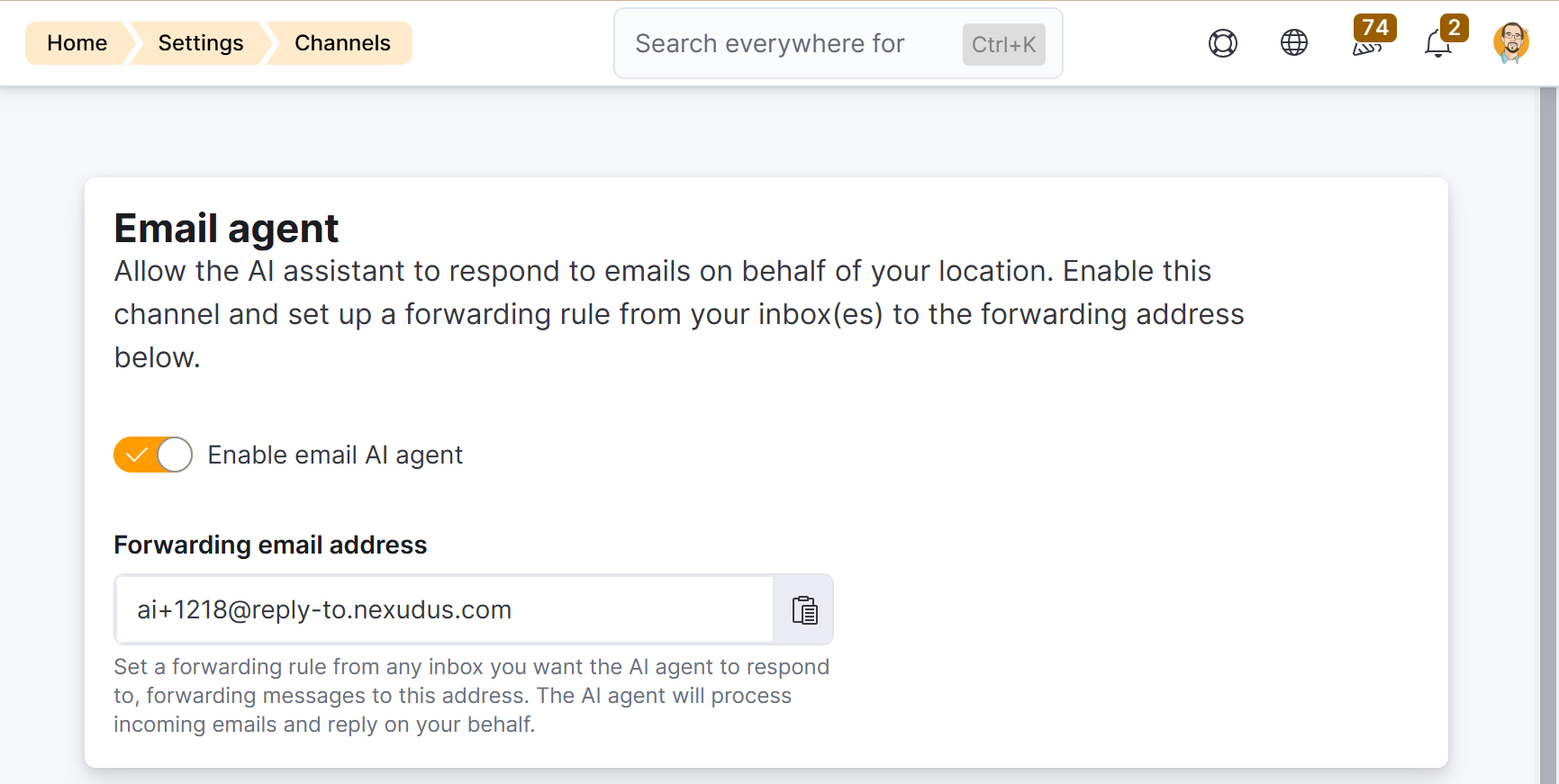
Step 2 — Set up email forwarding
The email channel works by forwarding emails from an address you control — such ashello@yourspace.com or ai@yourspace.com — to the Nexudus AI inbox address. You can use any email address you like; it does not need to be a specific format.
Choose your email provider below for specific forwarding instructions:
- Gmail / Google Workspace
- Microsoft 365 / Outlook
- Other email providers
Set up forwarding in Gmail
You can either forward all incoming email to the Nexudus AI inbox, or use a filter to forward only messages sent to a specific address (recommended if you are using a shared inbox).- Forward all email
- Forward with a filter (recommended)
1
Open Gmail settings
In Gmail, click the gear icon in the top-right corner, then click See all settings.
2
Go to Forwarding and POP/IMAP
Click the Forwarding and POP/IMAP tab.
3
Add a forwarding address
Click Add a forwarding address and paste your Nexudus AI inbox address (
ai+{your-business-id}@mail.nexudus.com).4
Confirm the forwarding address
Google sends a confirmation email to the Nexudus address. Check your Nexudus AI inbox and click the confirmation link in that email to activate forwarding.
If you don’t see the confirmation email within a few minutes, check your spam or junk folder. The email comes from Google and contains a button or link to confirm the forwarding address.
5
Enable forwarding
Select Forward a copy of incoming mail to and choose your Nexudus AI inbox address from the dropdown.Choose Keep Gmail’s copy in the Inbox so you retain a copy of every message.
6
Save changes
Scroll down and click Save Changes.
ai@yourspace.com).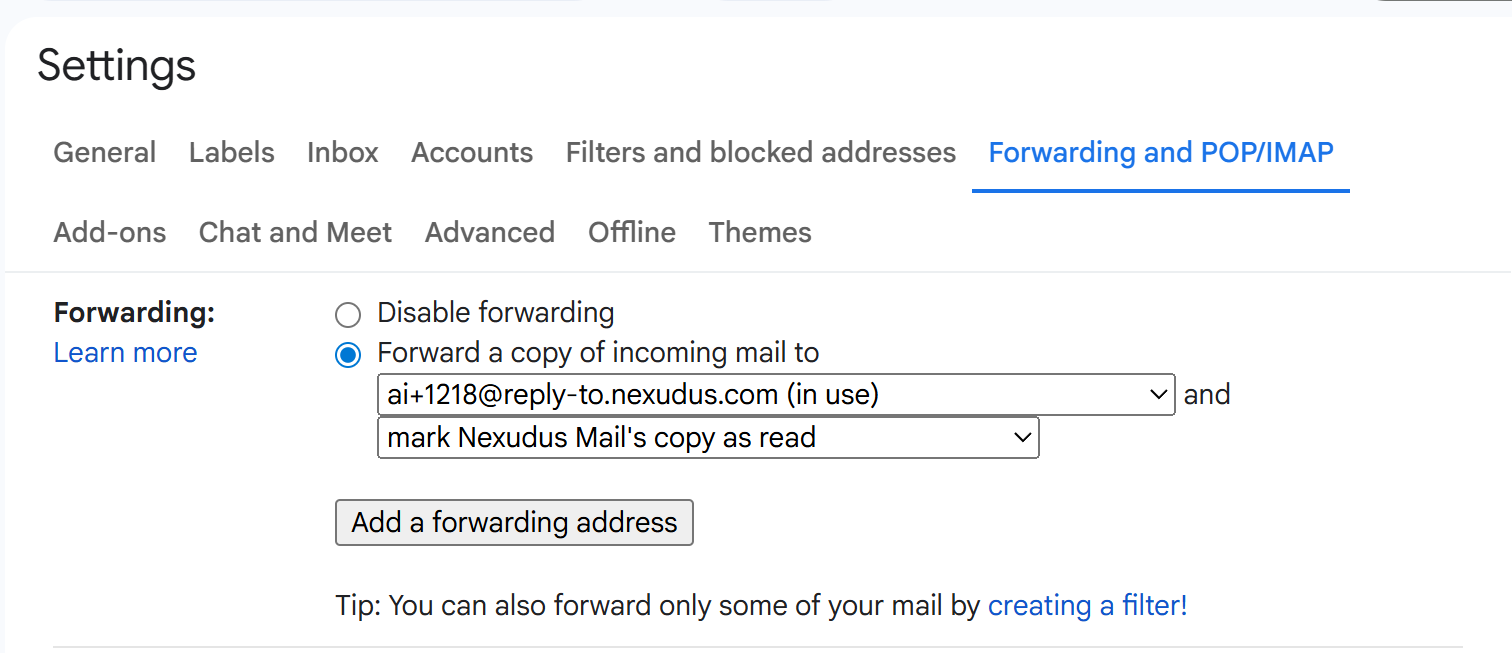

Step 3 — Verify the setup
Once forwarding is configured, test the full flow to make sure everything works.1
Send a test email
From a personal email address (not your forwarding address), send an email to the address you configured for AI interactions — for example,
ai@yourspace.com. Use a simple question like:What are your opening hours?
2
Wait for the AI reply
Within a few minutes, you should receive a reply from the AI assistant. The reply comes from your space’s AI assistant address and includes your space name in the sender field.
3
Check the AI Conversations list
In the Nexudus administration panel, go to Operations > AI Conversations. You should see a new conversation with your test message. The Channel column will show Email.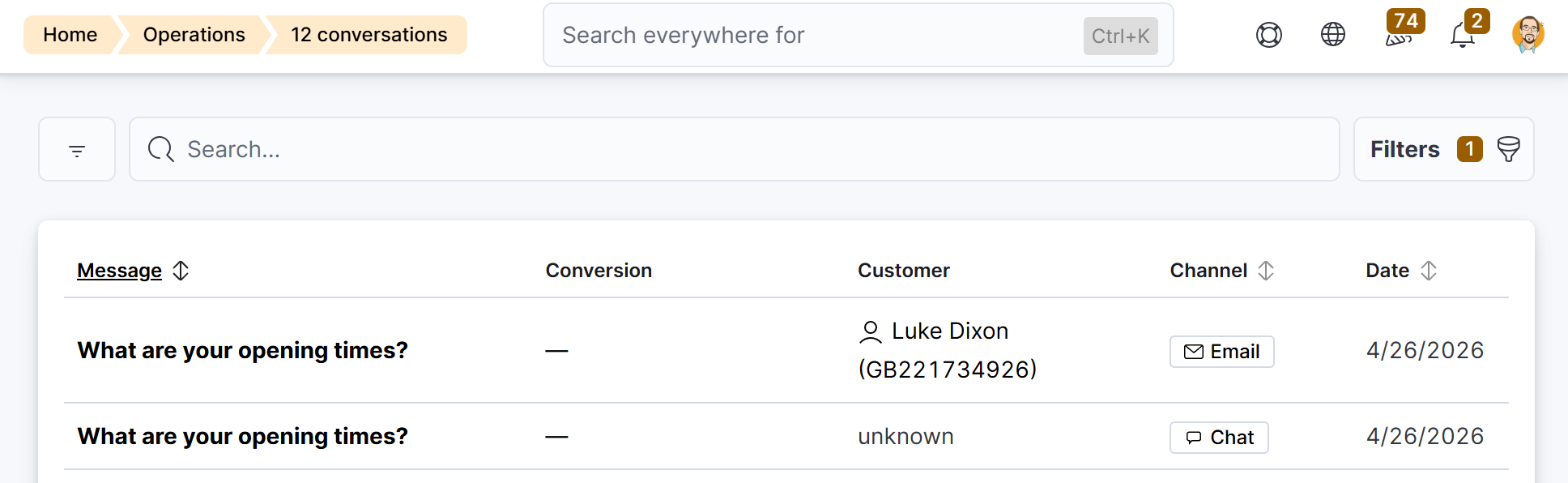
Step 4 — Share the email address with your members
Once the channel is working, share the email address with your members and prospects. Common ways to do this:- Add it to your website contact page alongside your other contact methods.
- Include it in your welcome email to new members.
- Add it to your email signature or auto-reply messages.
- Display it on physical signage in your space.
How replies and threading work
When the AI replies to an email, the reply includes a special Reply-To address that embeds the session ID. This means:- If the member replies to the AI’s email, the reply is automatically routed to the same conversation session.
- The email thread in the member’s inbox looks like a normal back-and-forth email conversation.
- After 48 hours of inactivity, the session expires and the next email starts a fresh conversation.
- A new email with a different subject line also starts a new session.
Frequently asked questions
Can I use my main inbox (e.g. hello@yourspace.com) instead of a dedicated address?
Can I use my main inbox (e.g. hello@yourspace.com) instead of a dedicated address?
Technically yes — any email forwarded to the Nexudus AI inbox address is processed by the AI. However, we recommend a dedicated address to keep AI conversations separate from your regular email.
What happens if someone sends an email with attachments?
What happens if someone sends an email with attachments?
The AI processes the text content of the email only. Attachments are noted in the conversation (the AI acknowledges they were sent) but cannot be read or processed. The AI will inform the sender that only text messages are supported.
What if the sender's email does not match any customer record?
What if the sender's email does not match any customer record?
The AI still replies — but capabilities that require an identified member (such as viewing or managing bookings) are unavailable. The AI will let the sender know what it can help with.
Can I disable the email channel later?
Can I disable the email channel later?
Yes. Switch off AI Email in your business settings. Forwarded emails will no longer be processed. You should also disable the forwarding rule in your email provider to avoid sending emails to an inactive inbox.
Does this cost extra?
Does this cost extra?
No. The email channel is included in the AI assistant feature. There are no additional charges for email-based conversations.