

The “AI Ready” badge
In the administration panel, any item that has Available to AI switched on shows an AI Ready badge in the list view. This makes it easy to see at a glance which of your plans, products, and offices are currently accessible to the AI without opening each record individually. The badge appears in:- Billing > Plans — for each membership plan tariff enabled for AI
- Billing > Products — for each day pass product enabled for AI
- Spaces > Floor Plan > Desks & Offices — for each private office enabled for AI
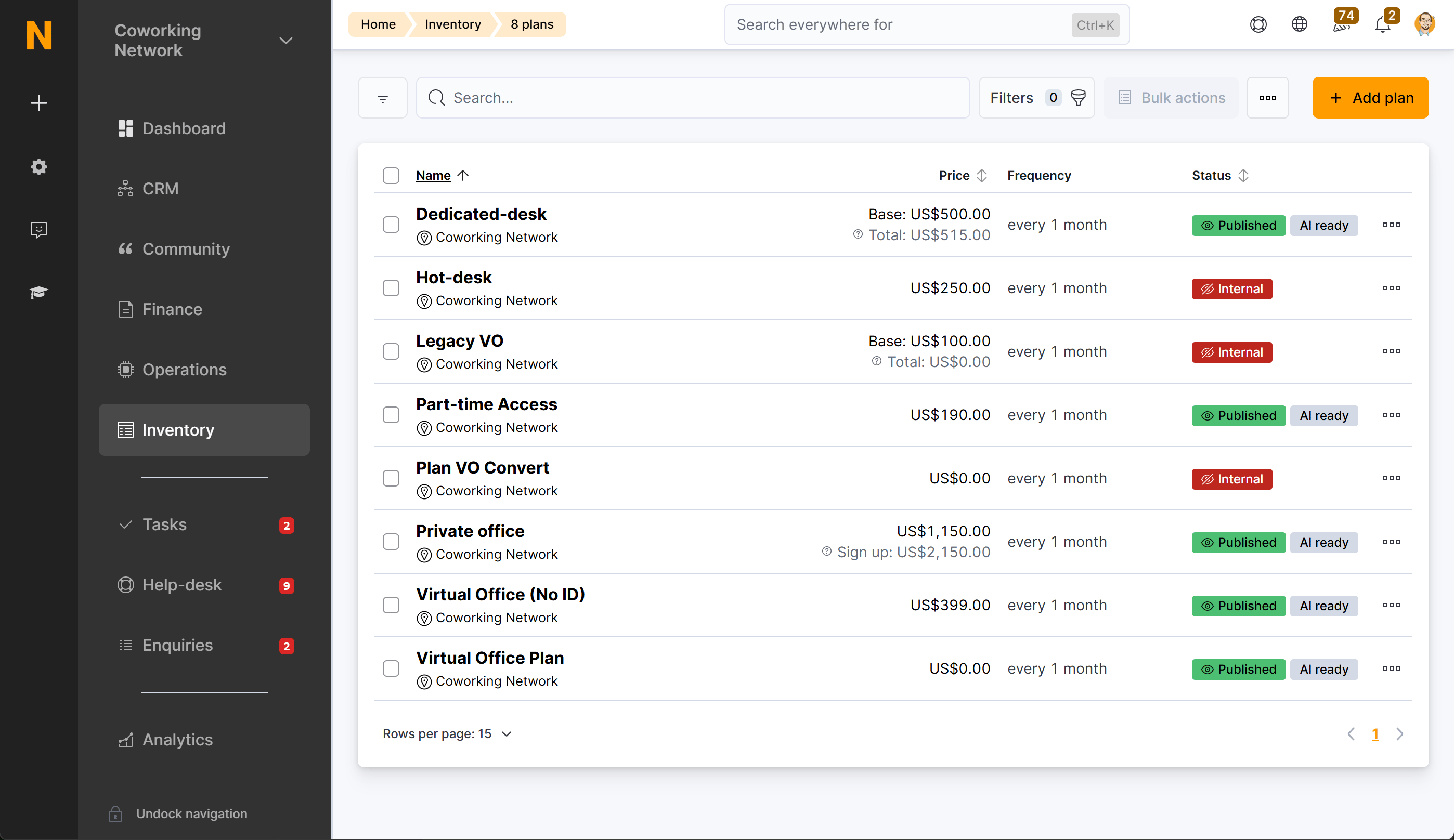
AI Items settings page
The quickest way to review and manage AI settings across all your items is the dedicated AI Items settings page. Go to Settings > AI > Items to open it. The page has three tabs — Products, Plans, and Floor plan items — each showing a table with every record of that type. The columns are:
You can search by name and filter by the Available to AI status. All changes are saved immediately — there is no separate save step.
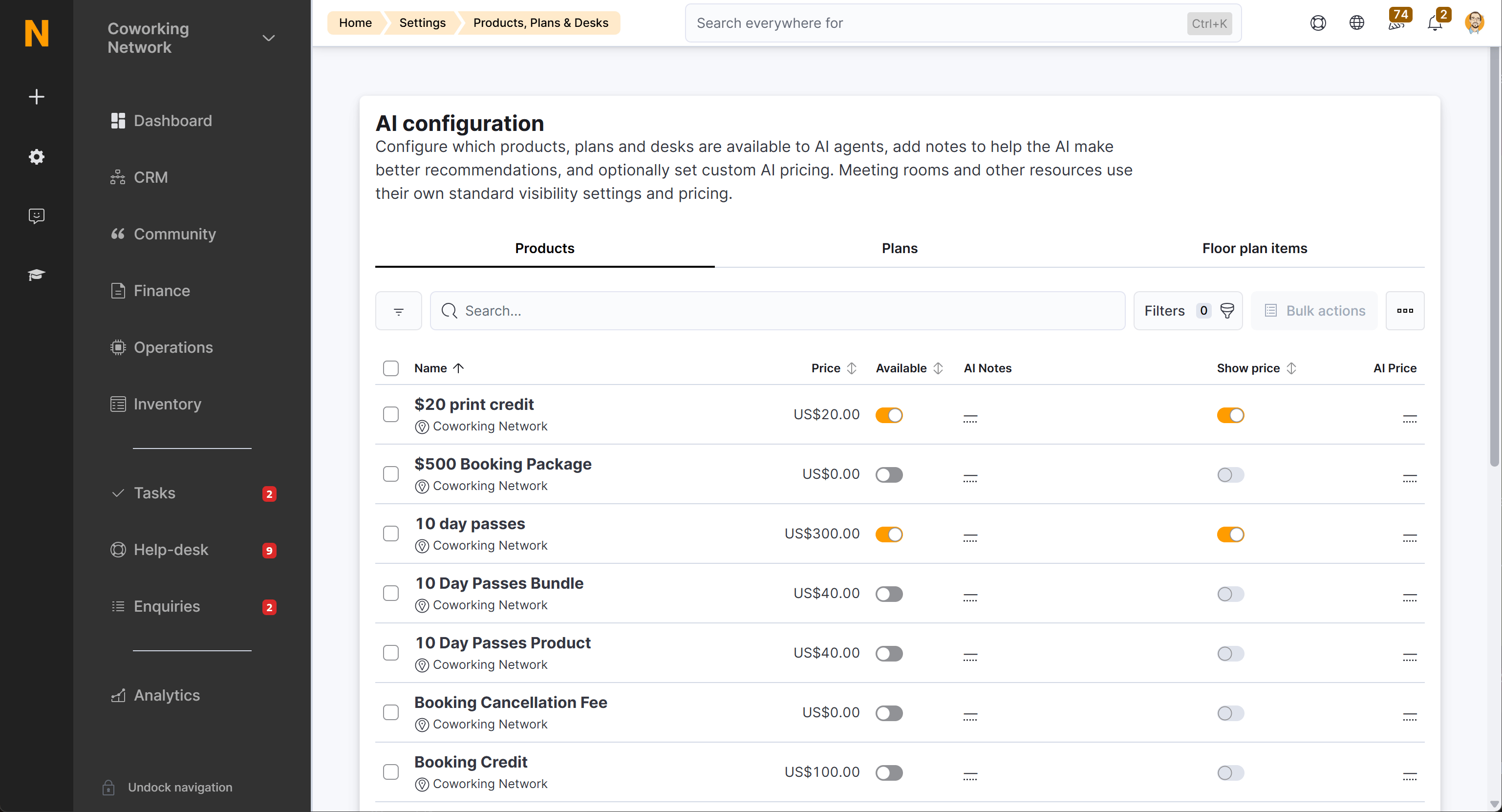
Where to find the AI settings on individual records
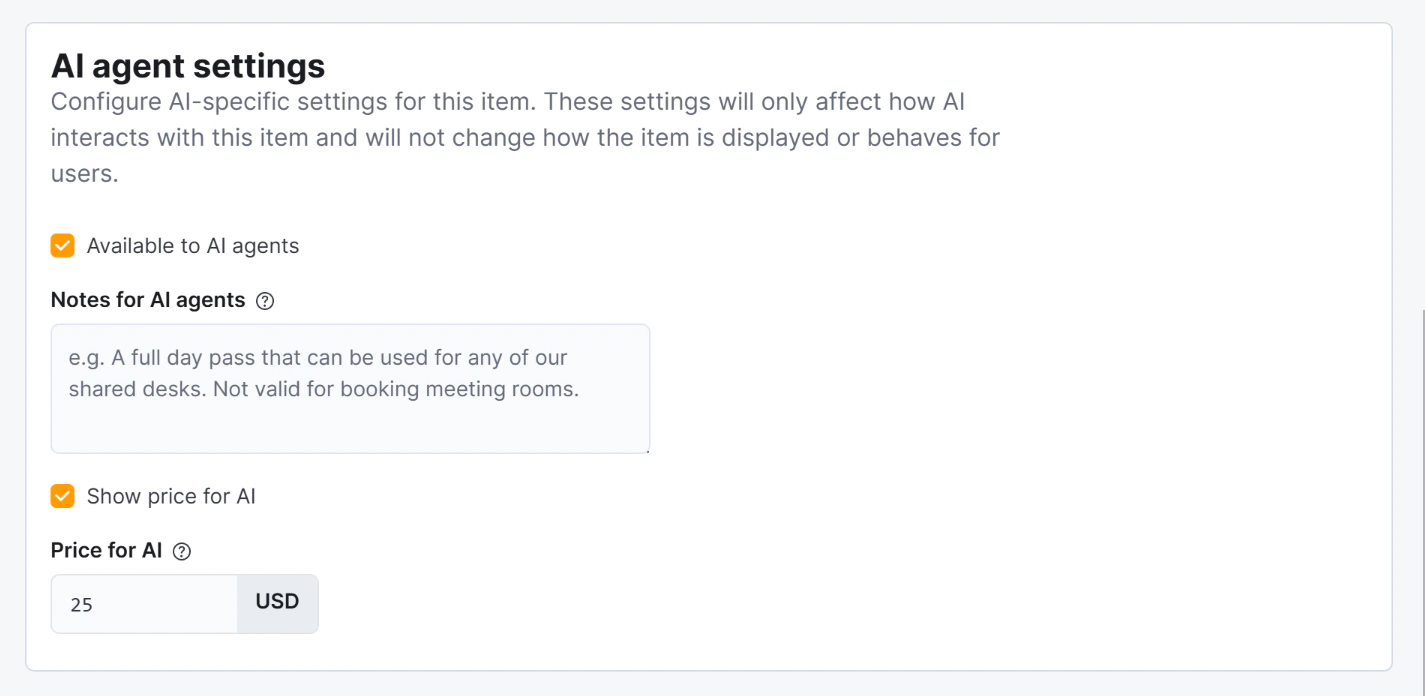
On each plan, product, or private office record, the AI-specific fields are also available in a section called “AI agent settings”. This section is separate from the general settings for the item.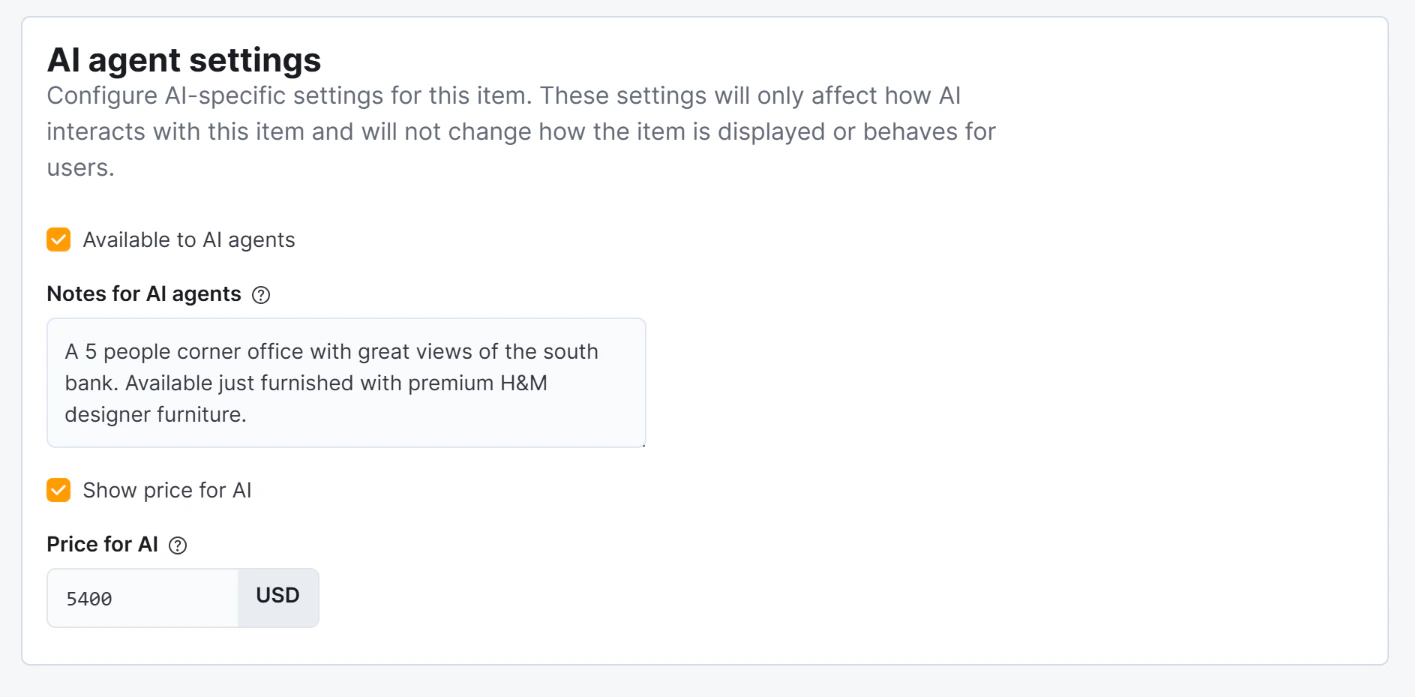
AI-specific fields
These four fields appear in the AI agent settings section on Day Pass products, Membership Plans, and Private Office floor plan items:
The standard Visible flag (present on products and plans) also affects the AI: when Available to AI is on but Visible is off, the AI acknowledges the item exists and suggests contacting the team, but does not show a price or a direct link.
Which item types the AI can work with
Not every product, plan, or floor plan item is eligible for the AI. Only certain types within each category are supported:Day passes
Only products whose type is Day Pass can be made available to the AI. Other product types (extras, services, etc.) are not shown to the AI regardless of their settings.Membership plans
The AI supports three categories of membership plan. Each category maps to one or more underlying plan types:
Plans of any other type are not available to the AI. Archived plans are also excluded automatically.
Private offices
Only floor plan items whose type is Office and that are marked as Available can be made available to the AI. Other floor plan item types (desks, meeting rooms, etc.) are not included.If you have enabled Available to AI on an item but it does not appear in the AI Items settings page or in AI responses, check that the item’s type matches one of the supported types listed above and that it is not archived.
Quick reference
Access control per capability
The AI follows exactly the same access rules as the rest of your portal. There is no separate AI-level access control — you manage it in the same places you already use.If your FAQ articles are set to “Members only”, a prospect who is not logged in will receive a message saying they need to be a member to access that information — not the answer itself. The same applies to “Contacts only”. This is handled automatically; you do not need to configure anything in the AI separately.
Channel settings
By default, only the chat channel is active. You can enable the email, WhatsApp, and voice channels in your business settings:
The AI-specific fields on items (Available to AI, Show price to AI, Price for AI, Notes for AI) apply uniformly across all channels. There is no way to make an item available on one channel but not another — if it is available to the AI, it is available on chat, email, WhatsApp, and voice.
See Channels for a full comparison of channel behaviour and setup.